
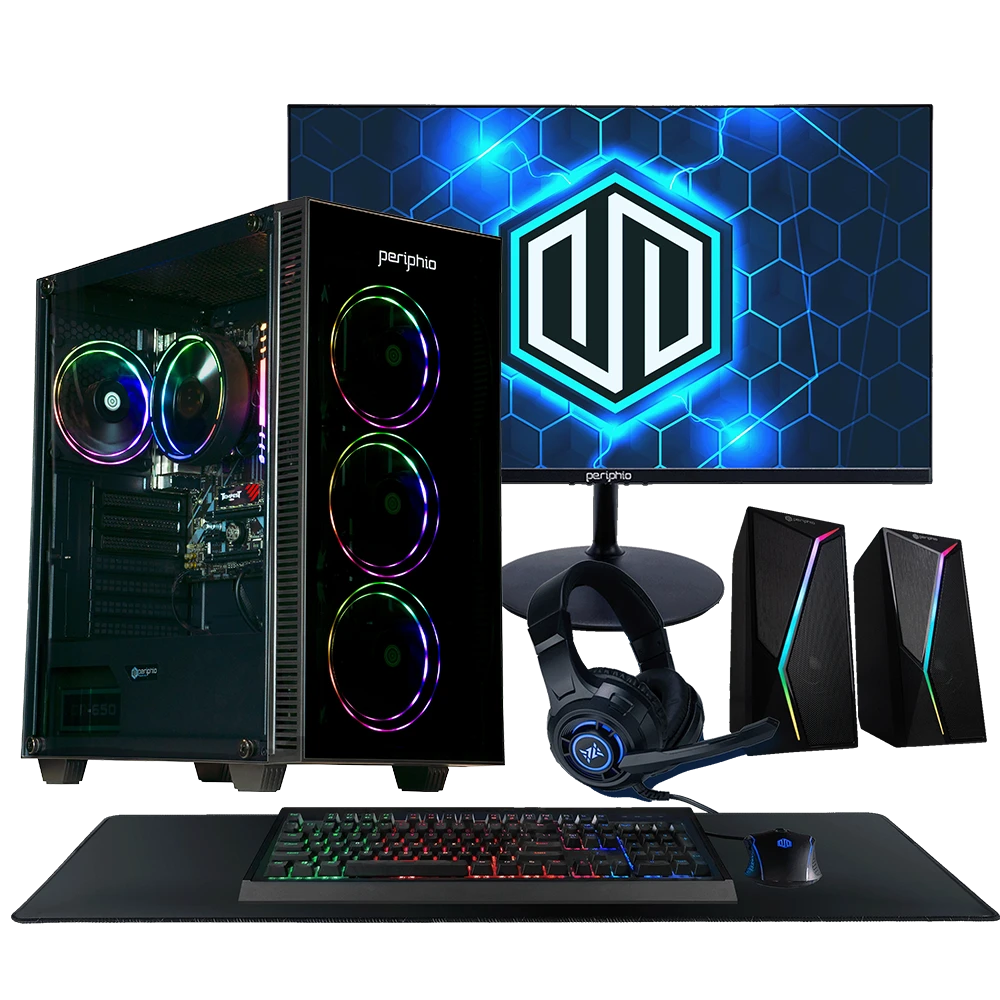
Periphio Terra Gaming PC Startup Video
For a quick overview of setting up your Periphio Terra Gaming PC, watch this video.
For more instructions, view the rest of this guide below.
Step 1. Unbox Your Gaming PC Unbox & Check Your Items
Let's make sure you have everything before setup!
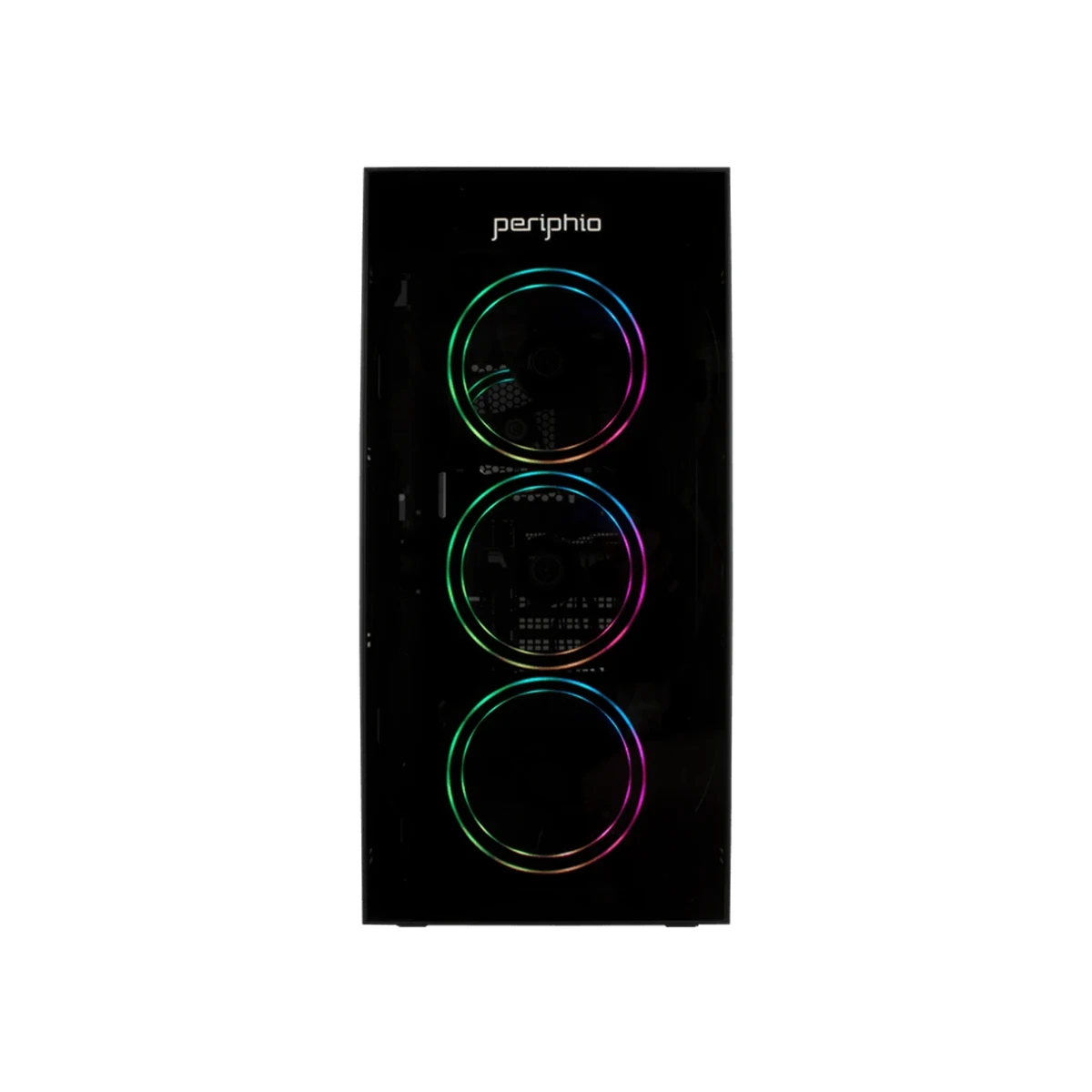
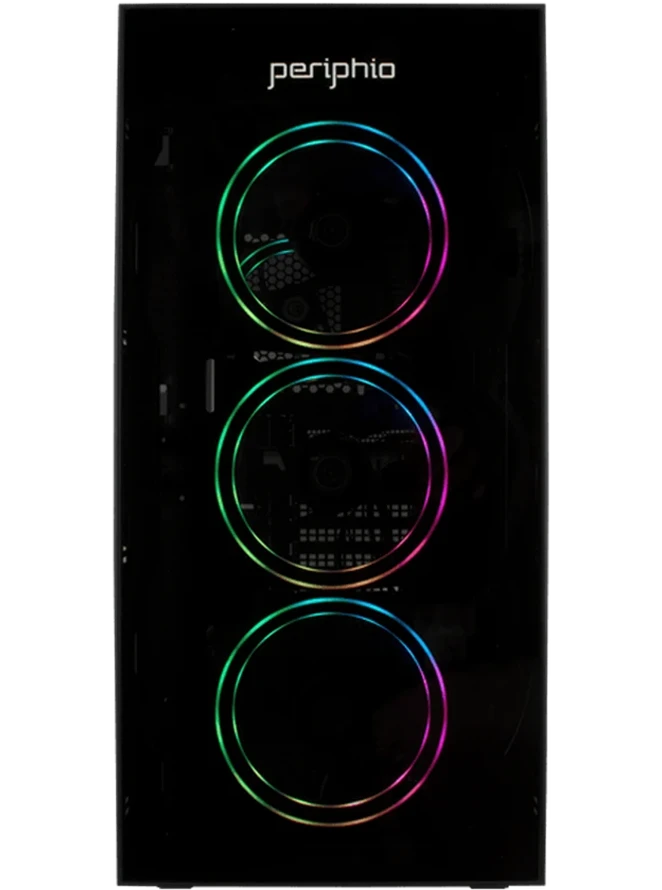
Desktop PC & Power Cable
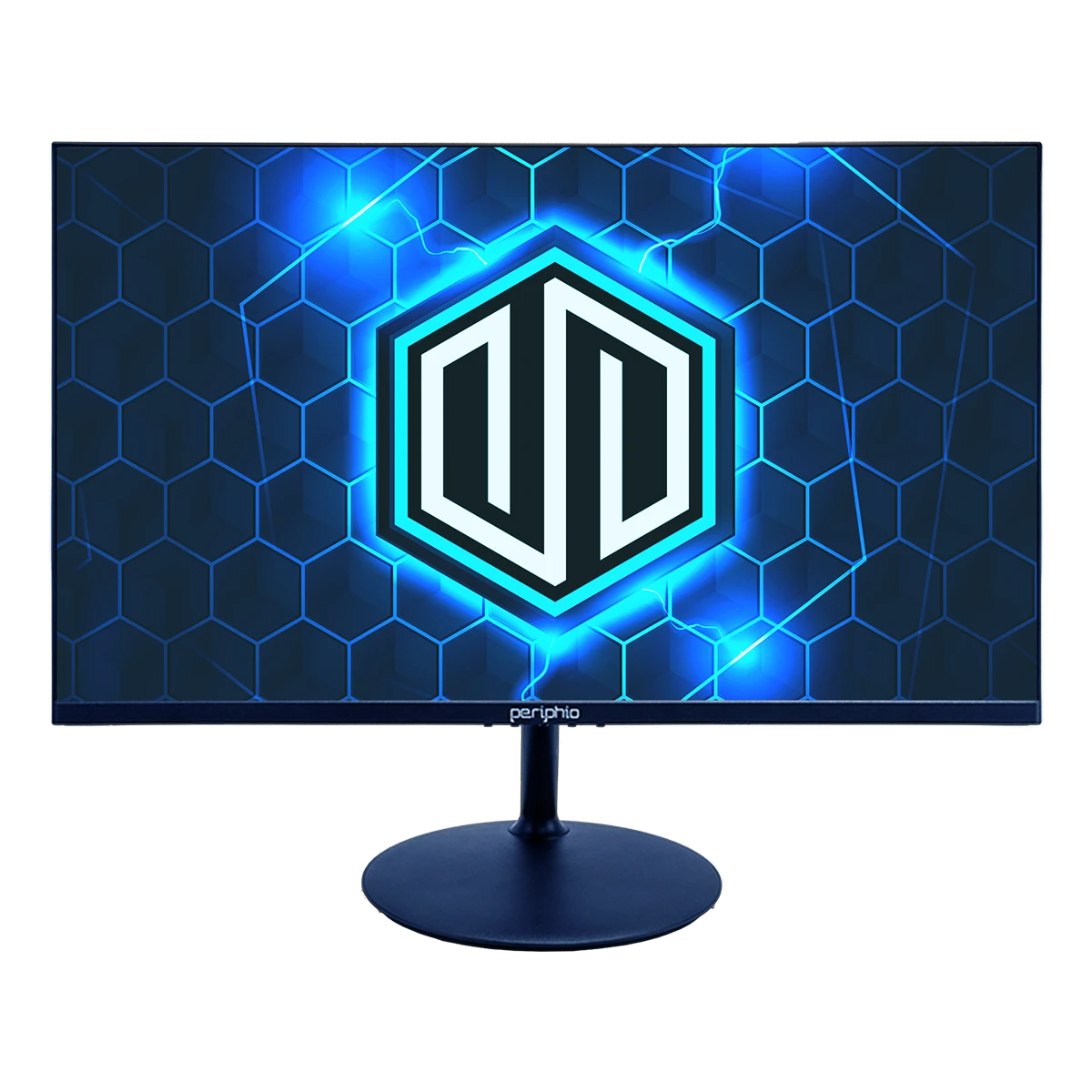
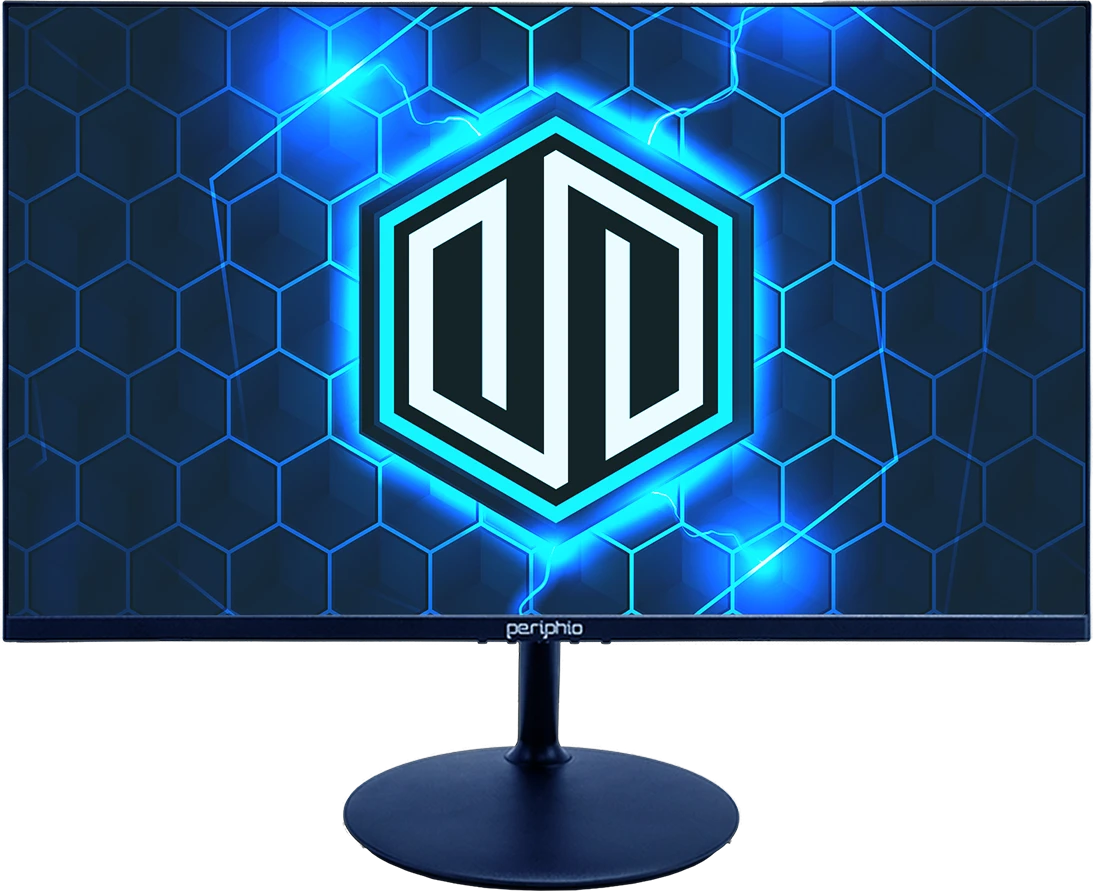
24in Monitor & Cables
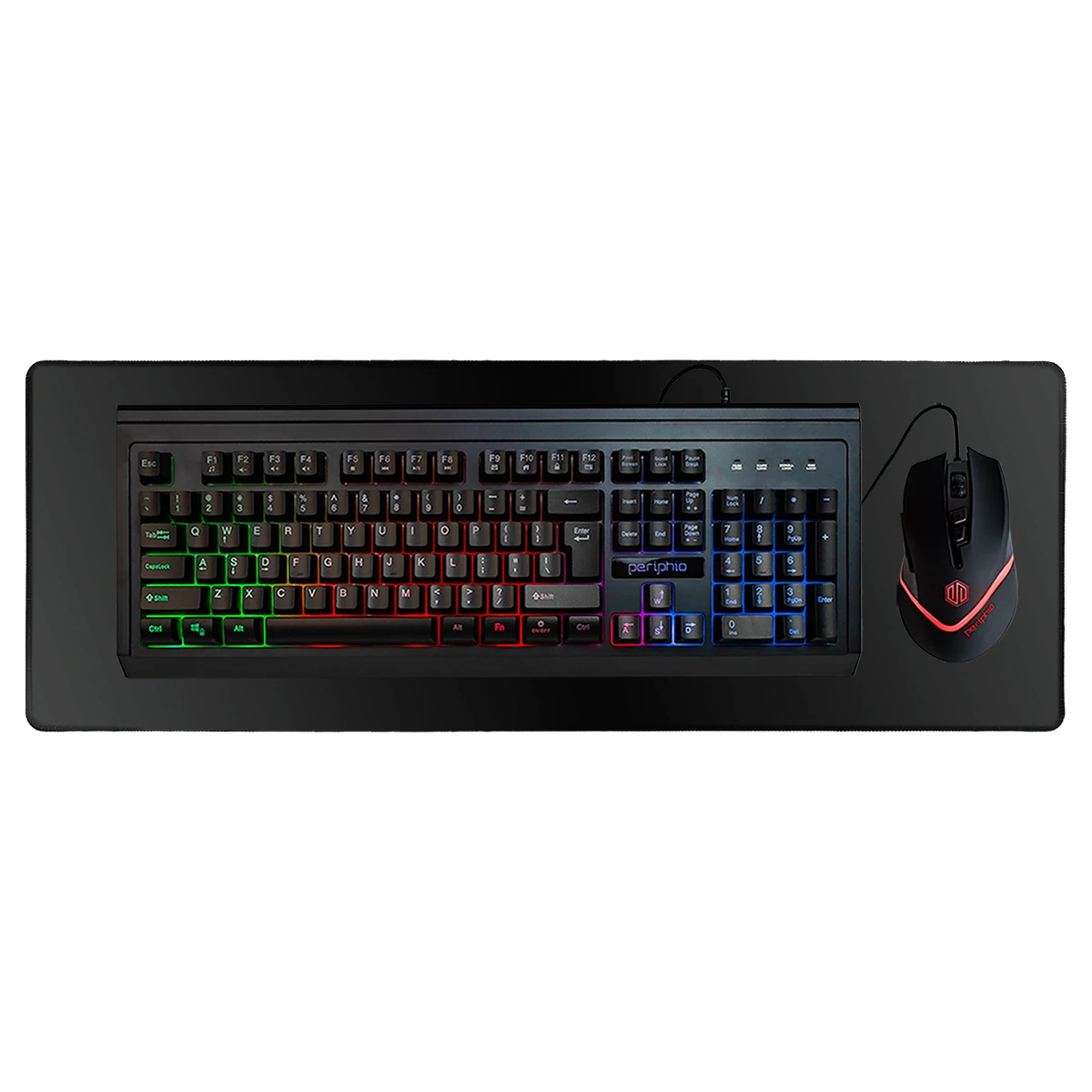
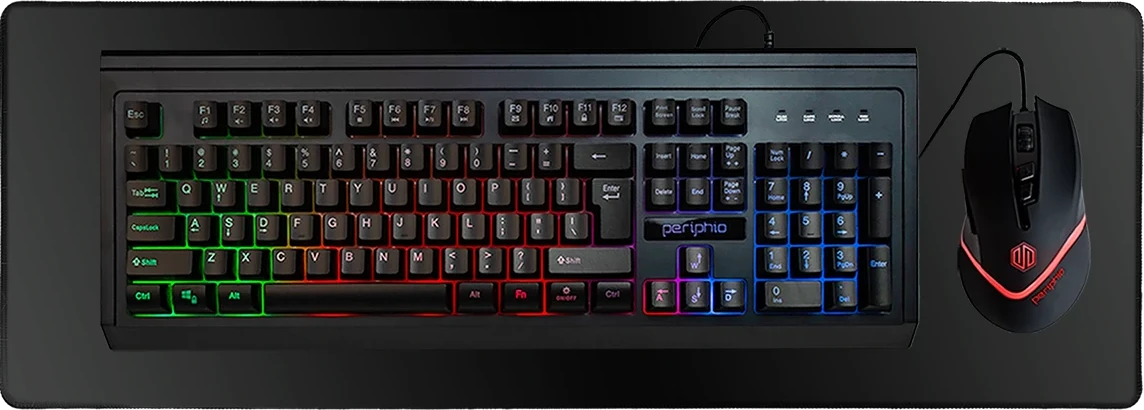
RGB Keyboard, Mouse, & Mat
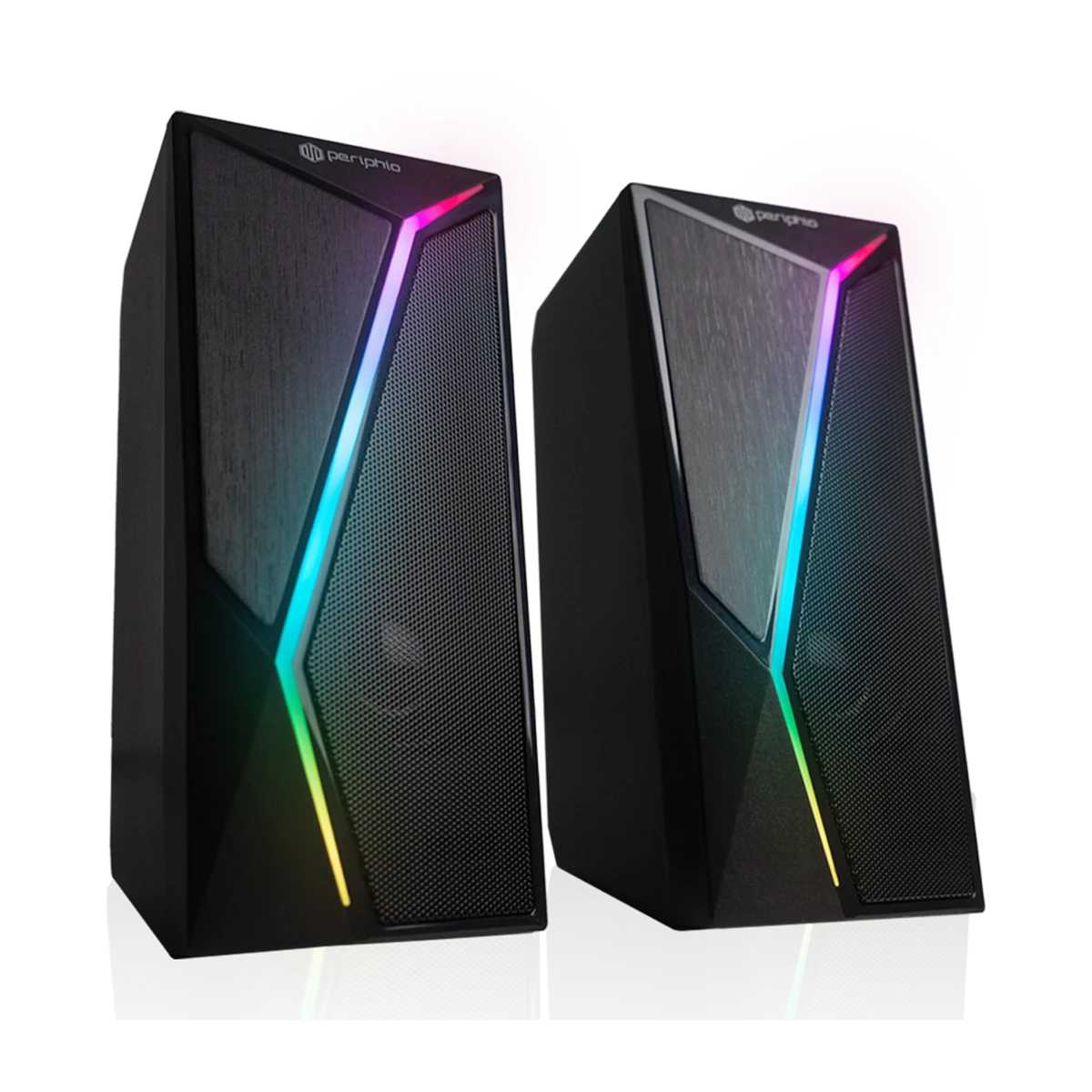
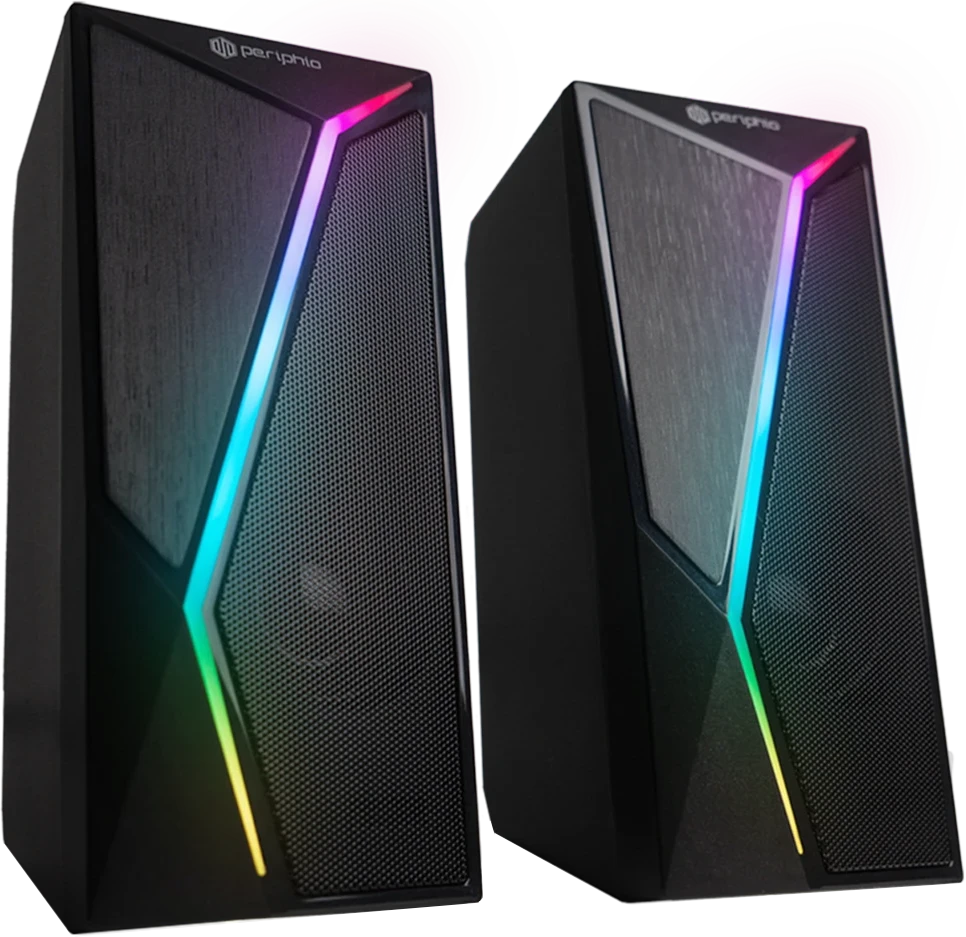
RGB Speakers
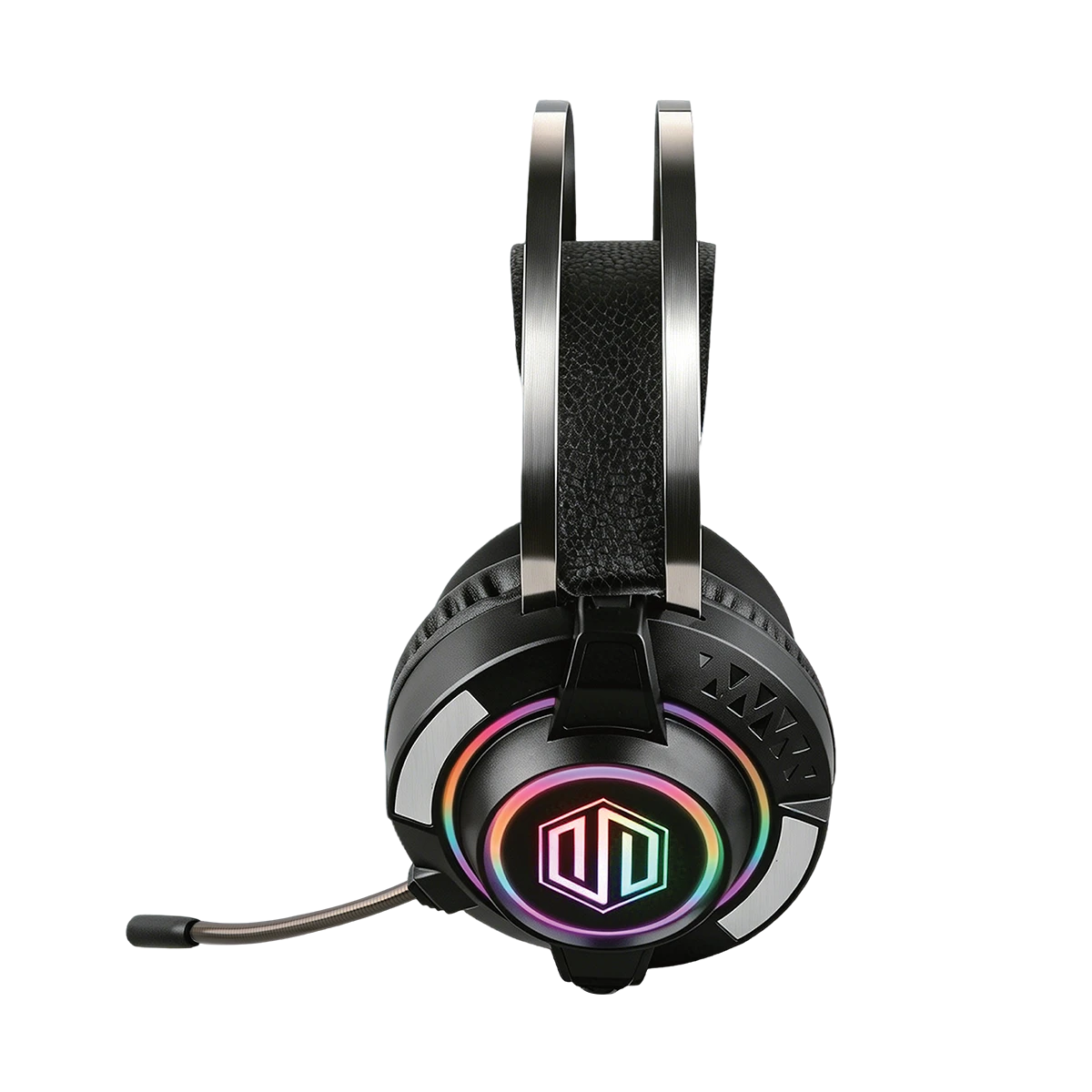
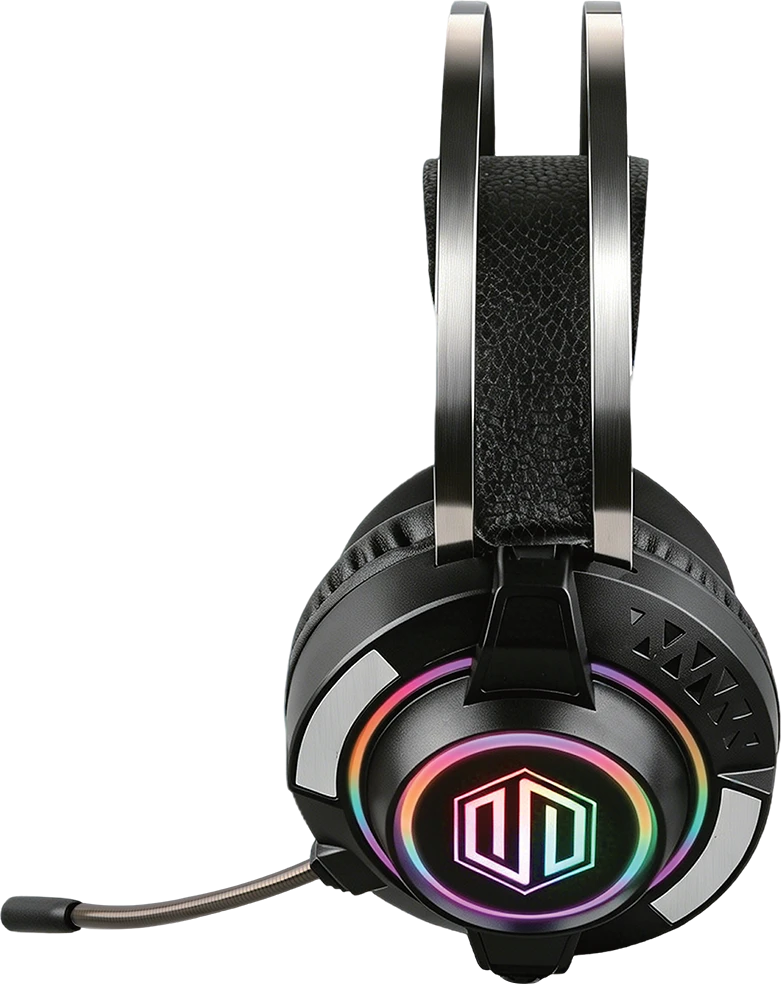
RGB Headset
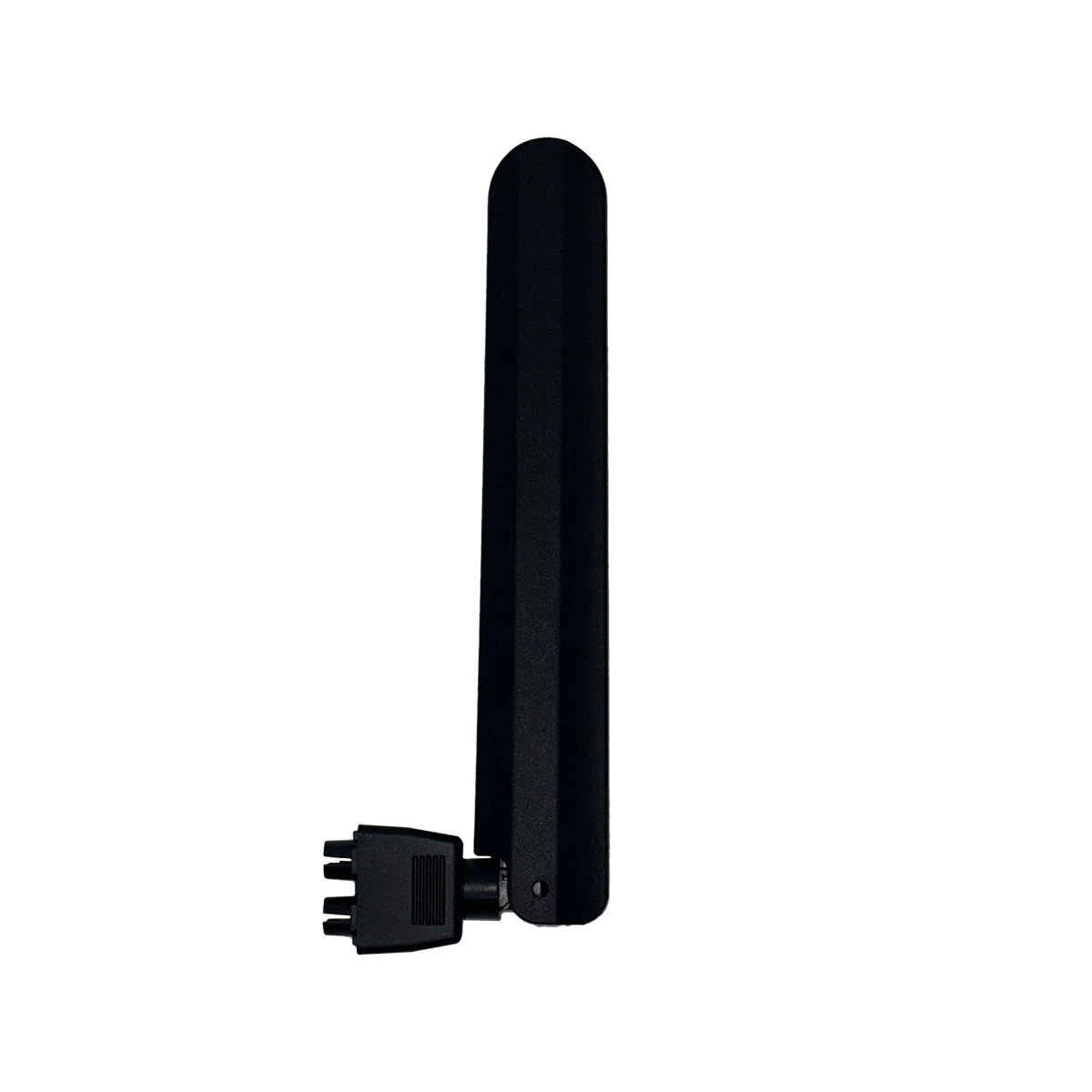
WiFi Adapter
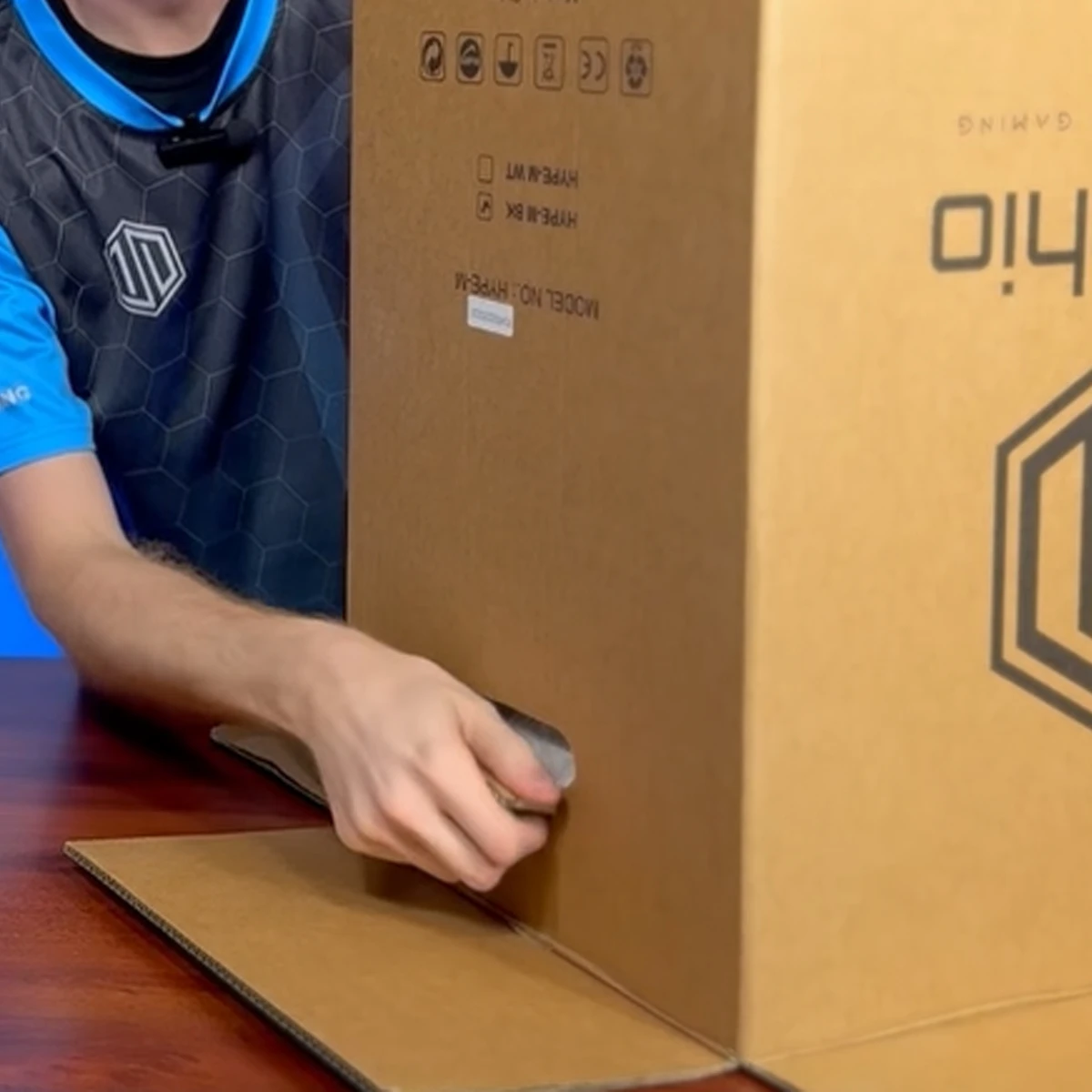
1. Open your box and take out your WiFi Adapter. Rotate your open box onto the top and remove the box from the styrofoam-encased PC.
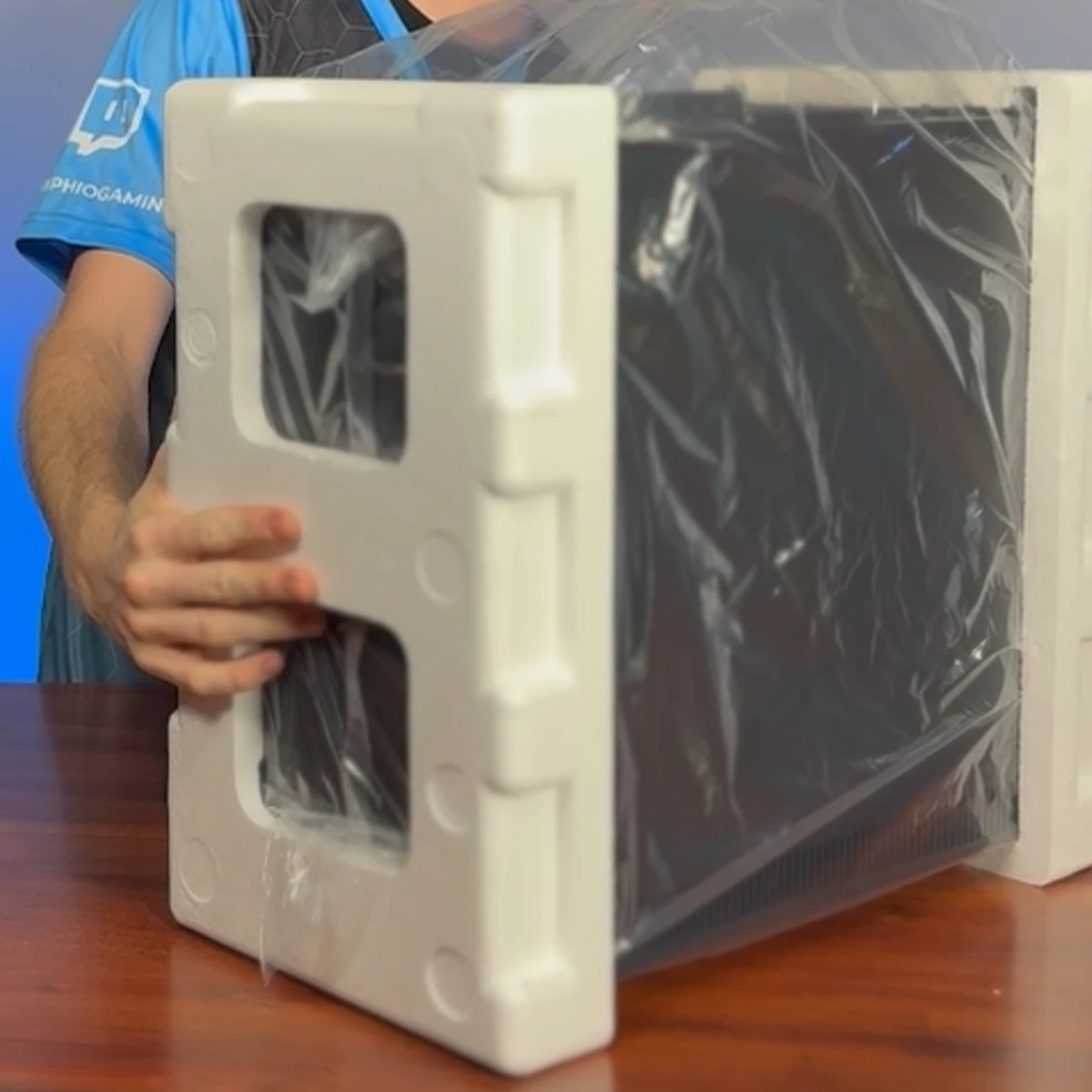
2. Locate the open side of the bag and rotate that side of the PC to the top.
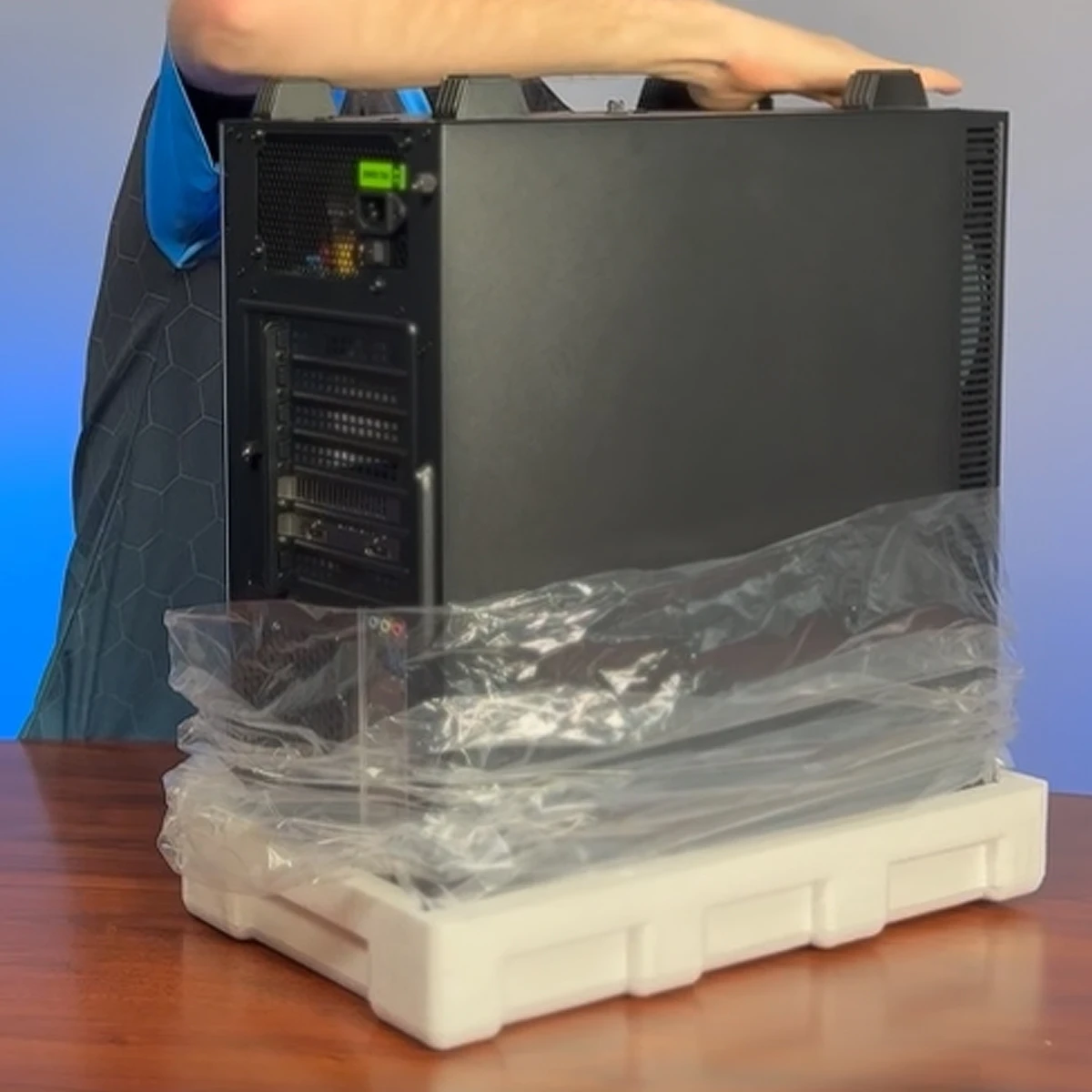
3. Remove the top piece of styrofoam and pull down the bag, then rotate the PC onto it's feet.
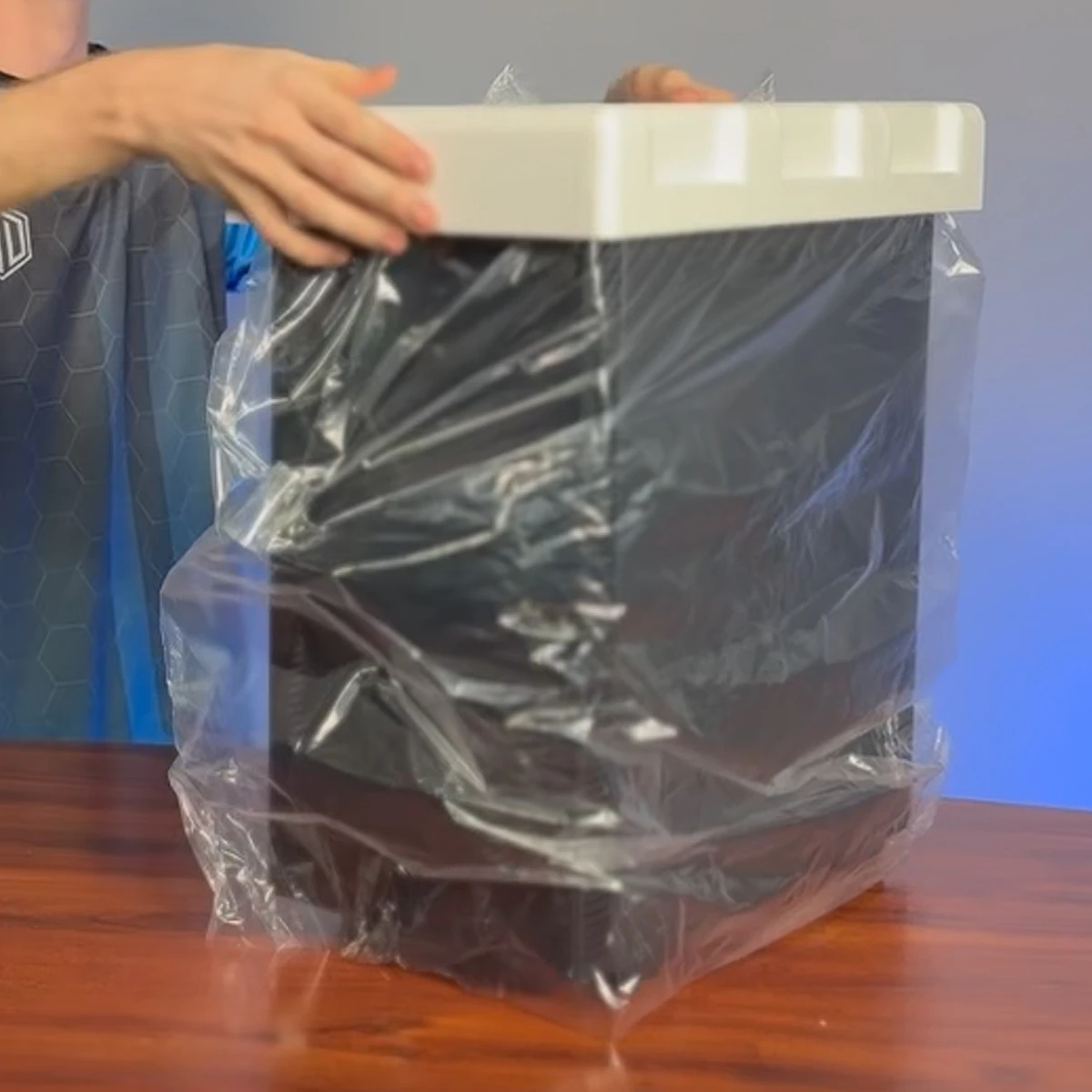
4. Remove the sytrofoam and bag from the top.
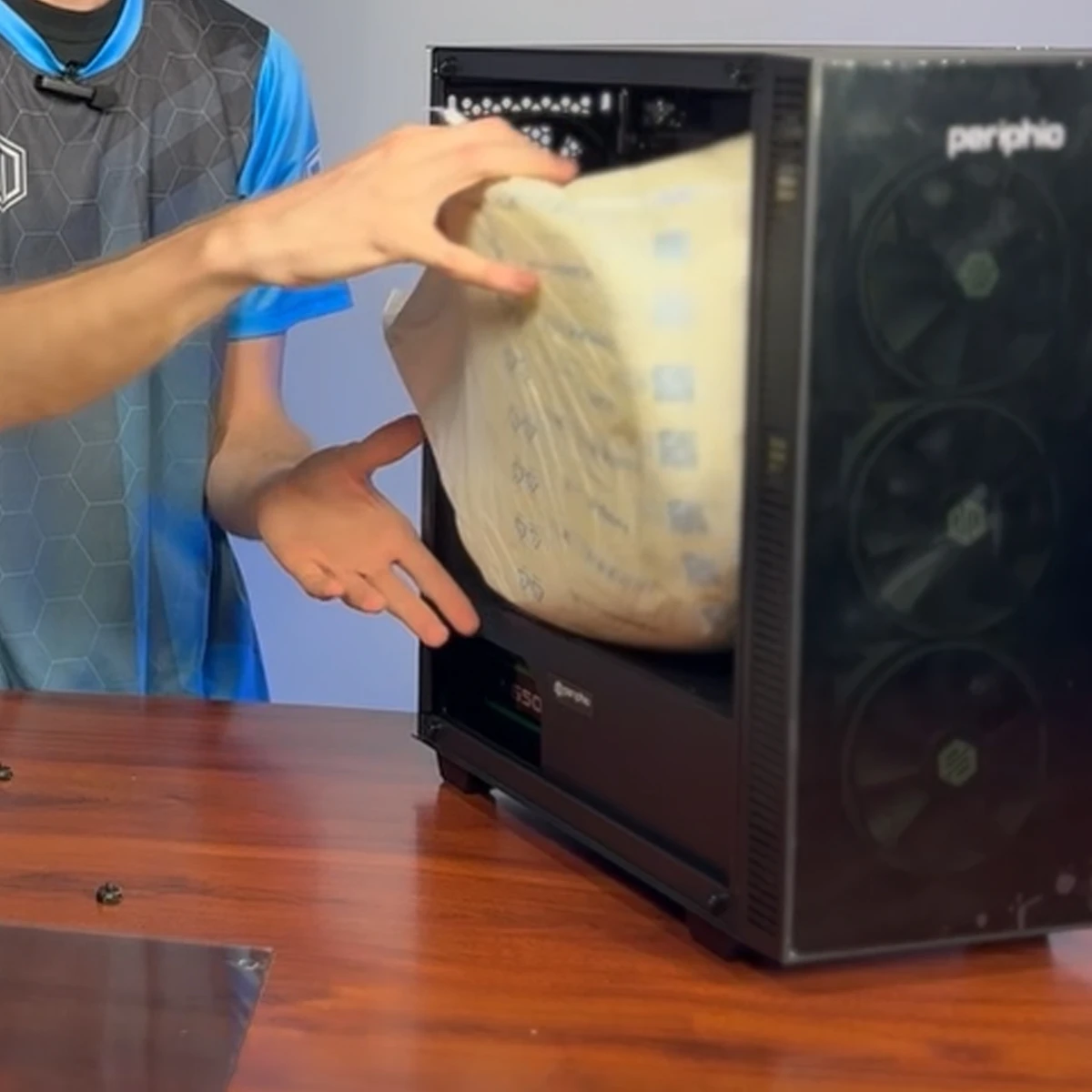
5. Remove the inside foam from the PC by removing the glass panel (pull it off from the corner).
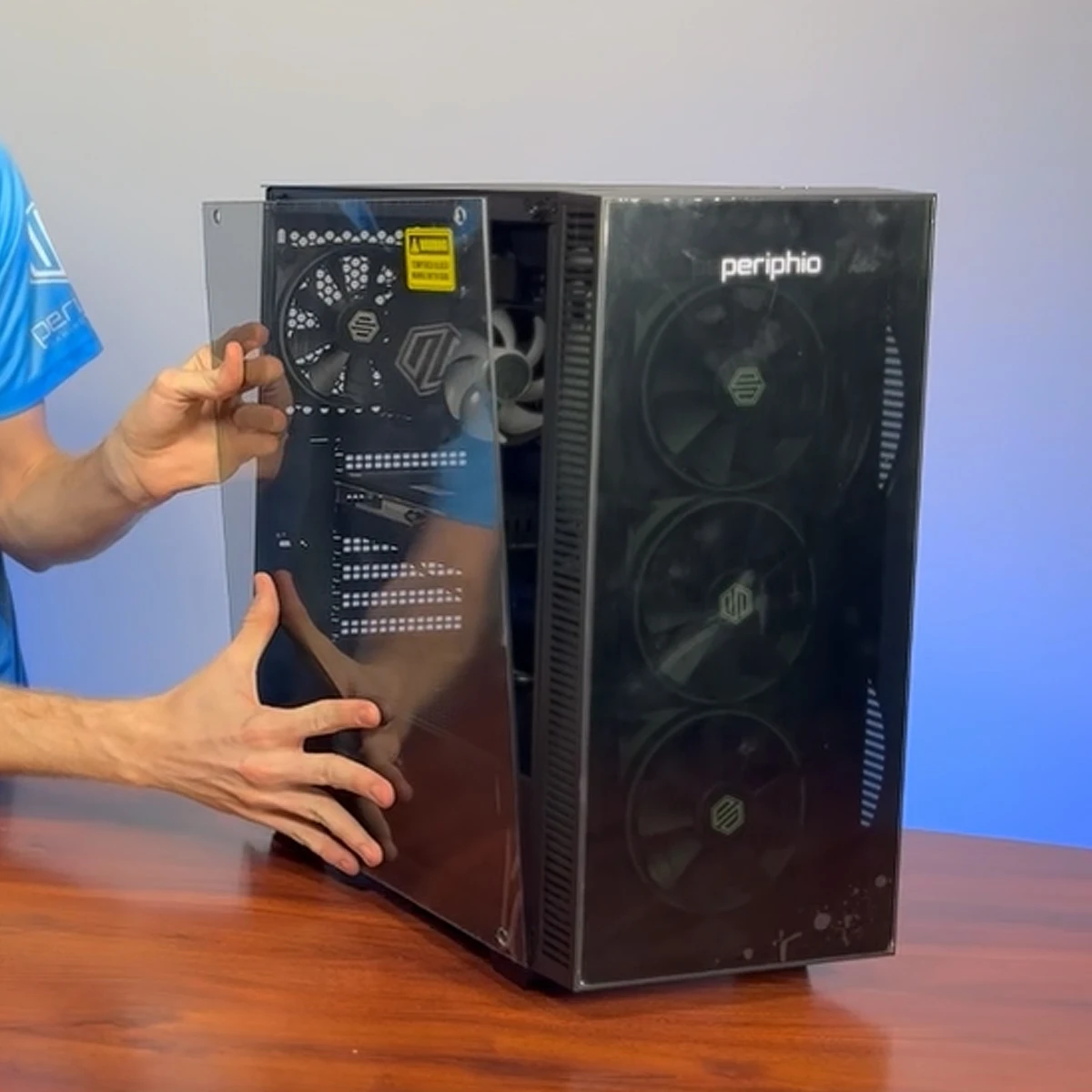
6. Reattach the glass panel and proceed to the next step in these instructions.
Step 2. Connect the Accessories
Let's get everything you need for your Terra Gaming PC connected.
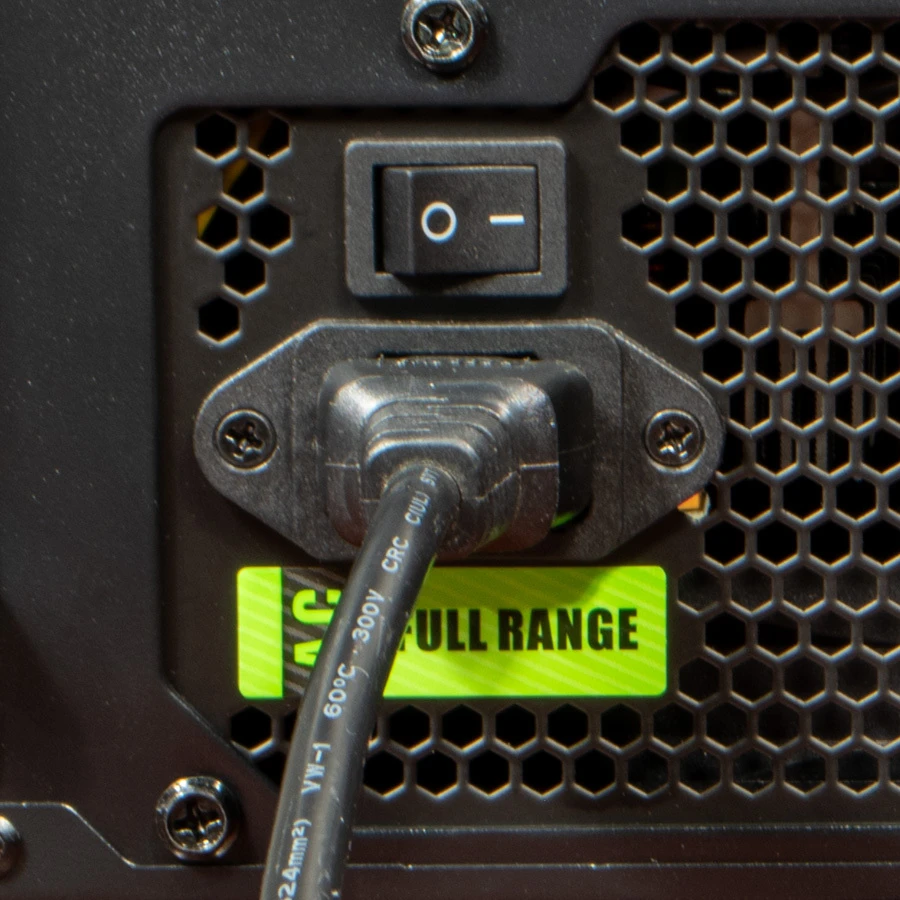
1. Connect the AC Power cable and flip the I/O switch to I.
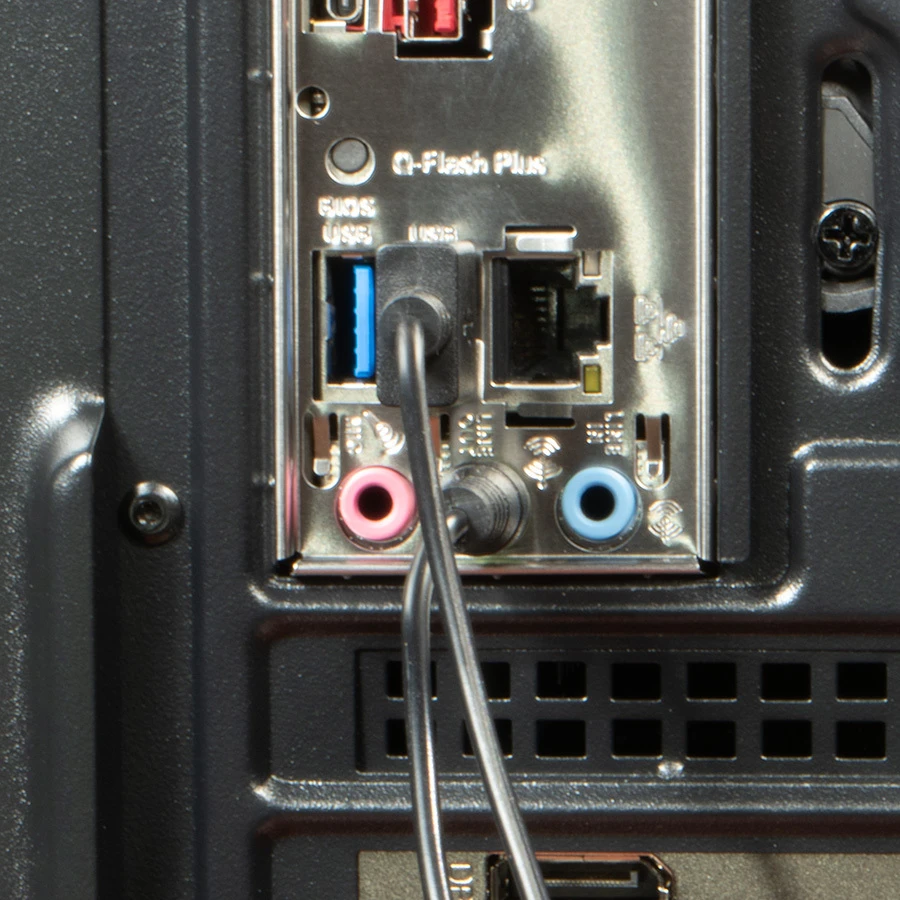
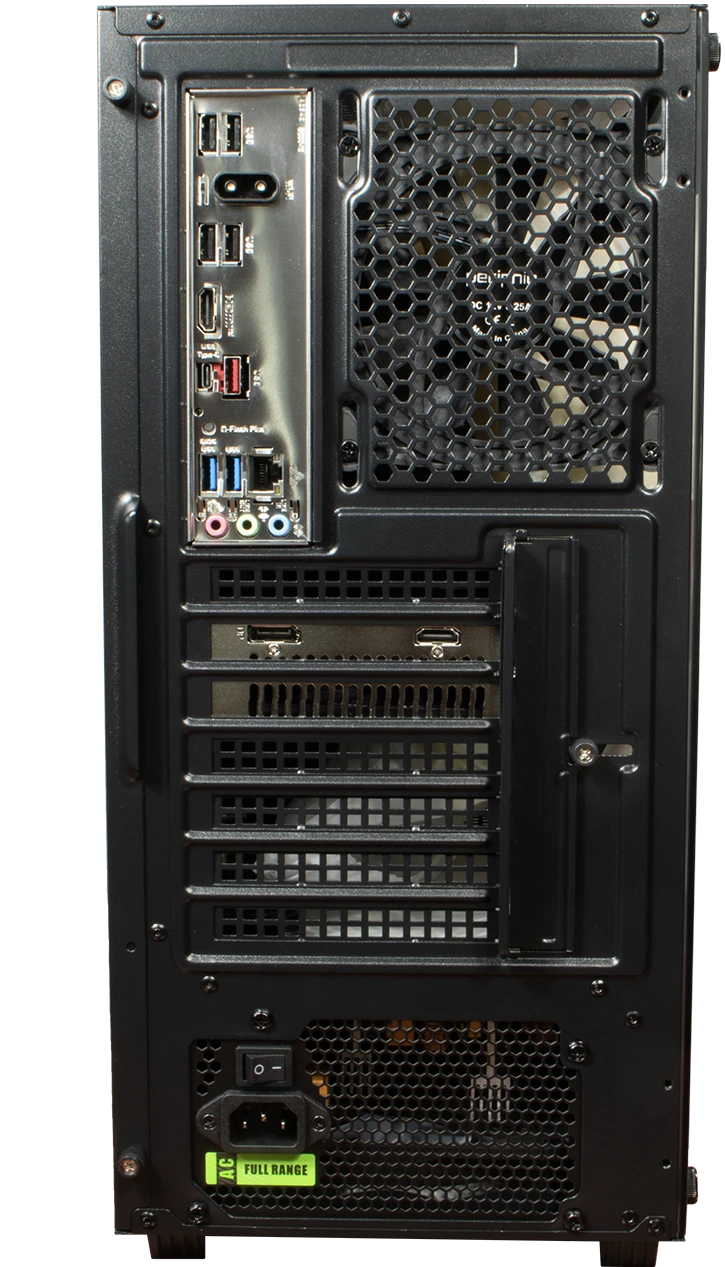
2. Plug the speaker's USB cable into the lower blue USB 3.2 ports and it's aux cable into the green Audio/Video port.
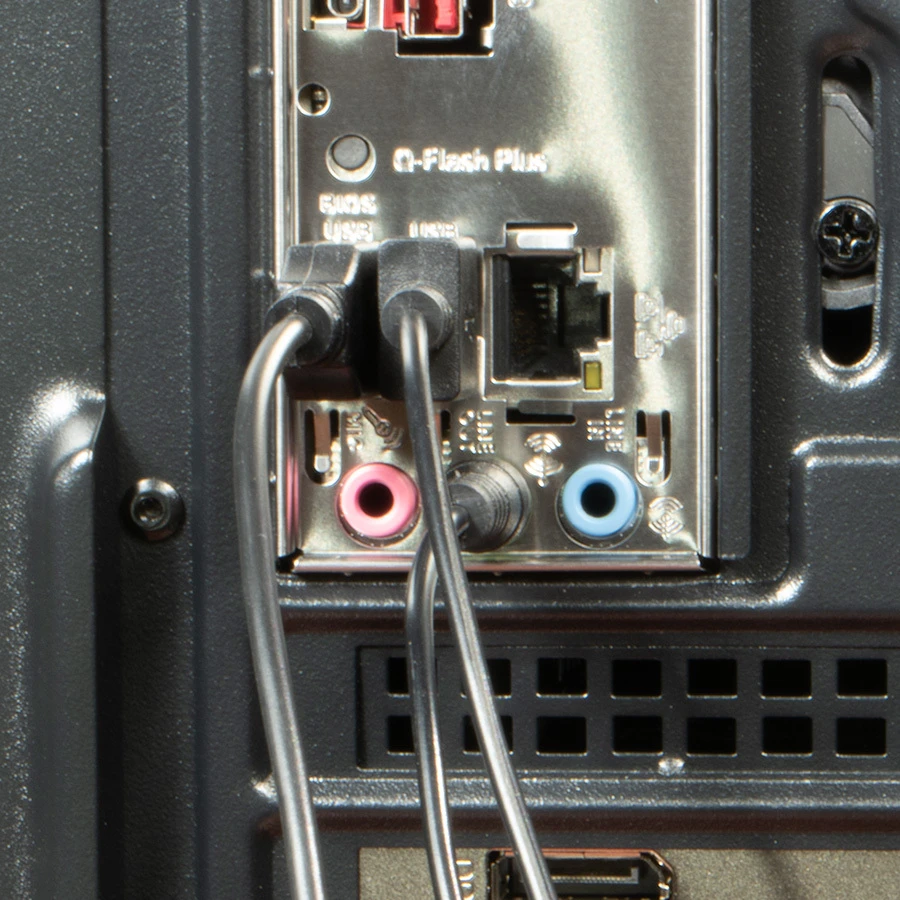
3. Plug in the keyboard's USB cable next to the speaker's.
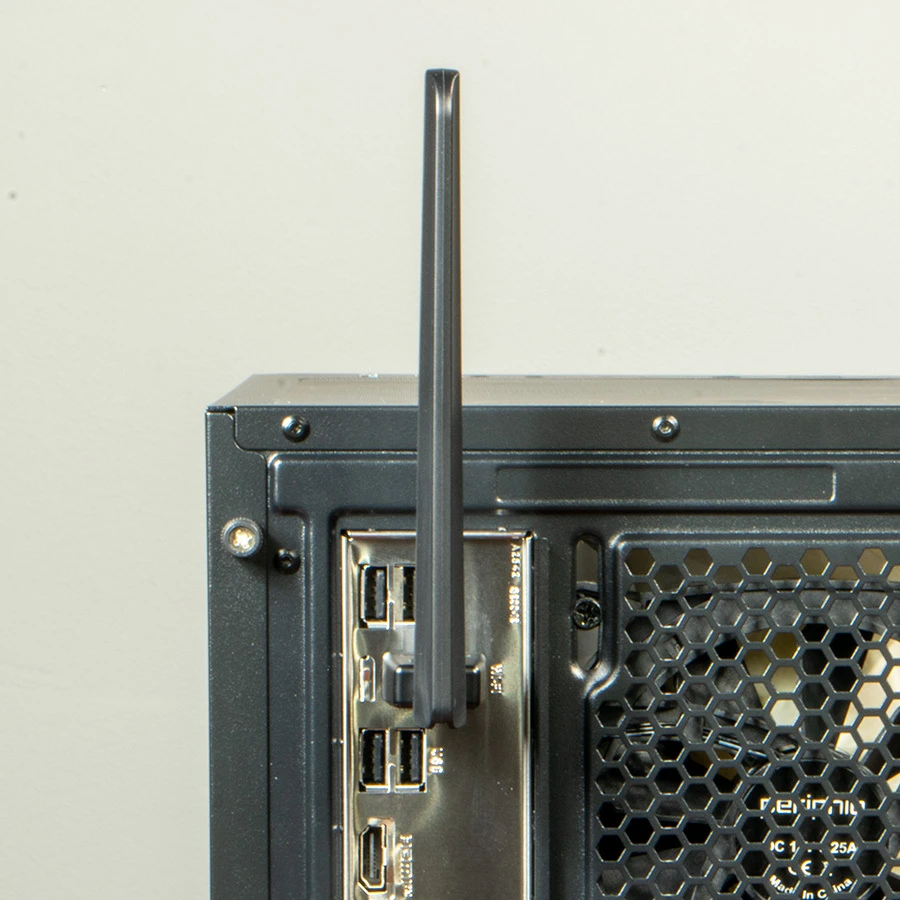
4. Connect the WiFi adapter for wireless internet connection or use the available Ethernet or WiFi ports.
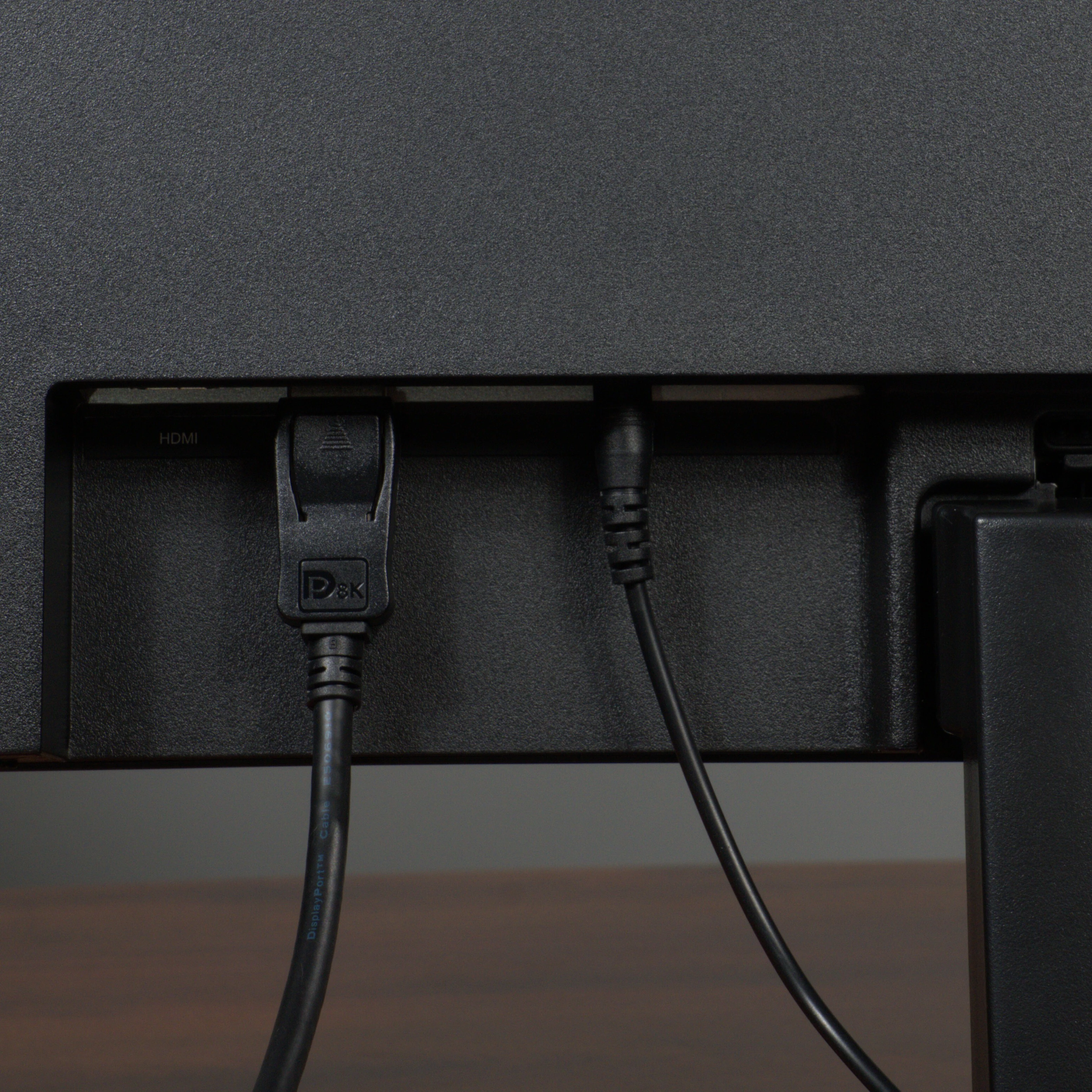
5. Connect the monitor's video and power cable to the back of the monitor.
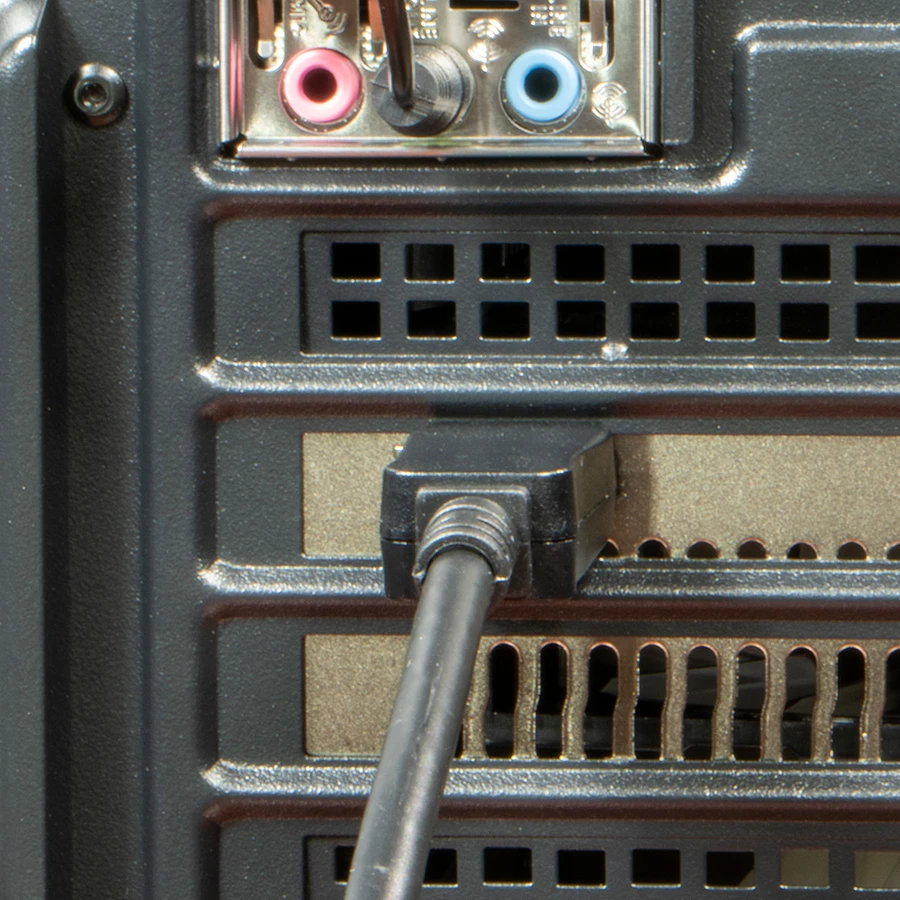
6. Connect the other end of the video cable to the GPU port.
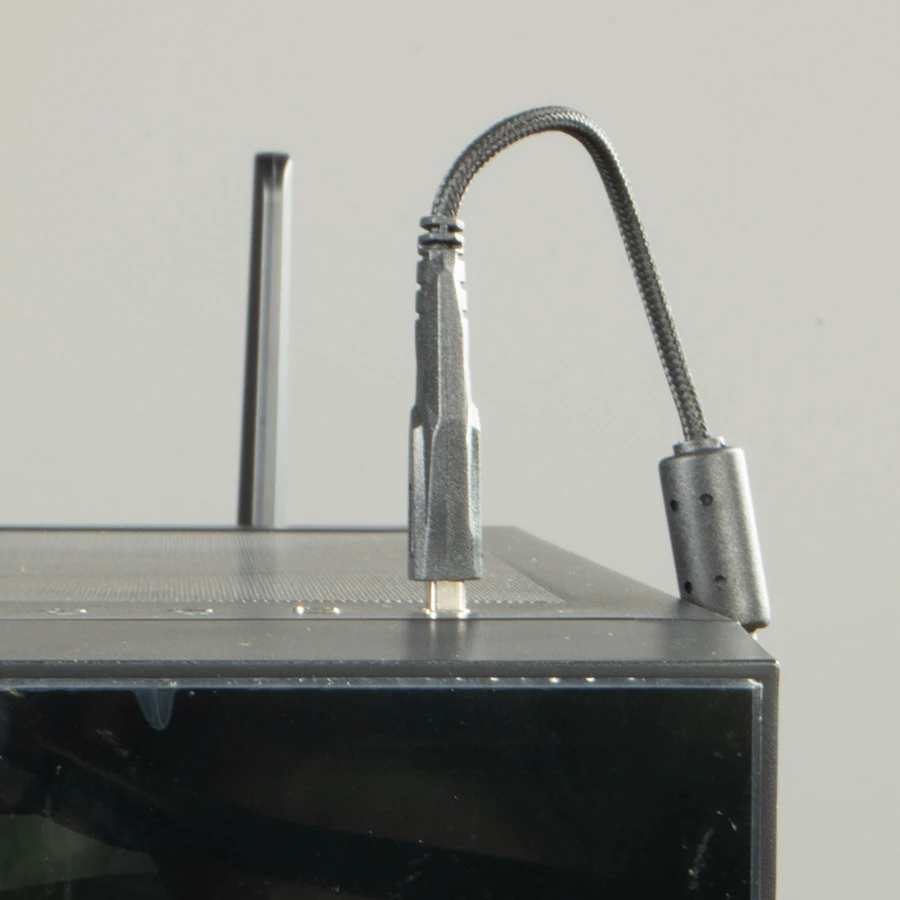
7. Plug the mouse cable into the PC's front USB 3.2 port.
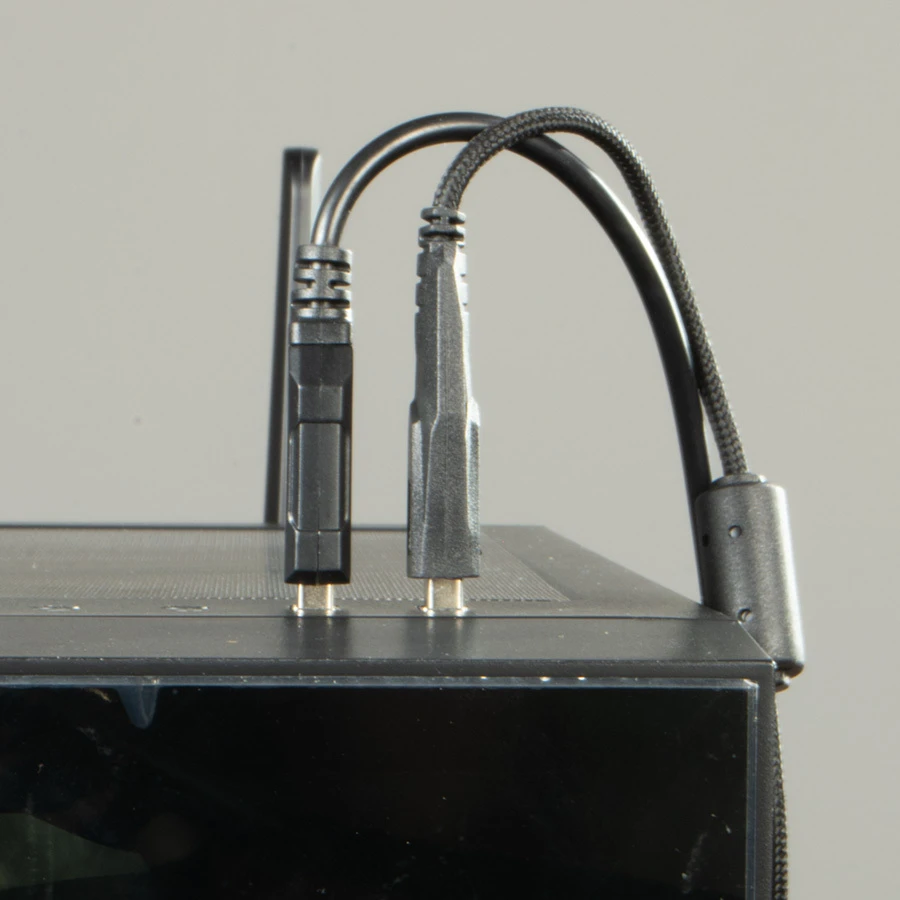
8. Plug the headset cable into the PC's front USB 2.0 port.
Step 3. Turn On Your Gaming PC
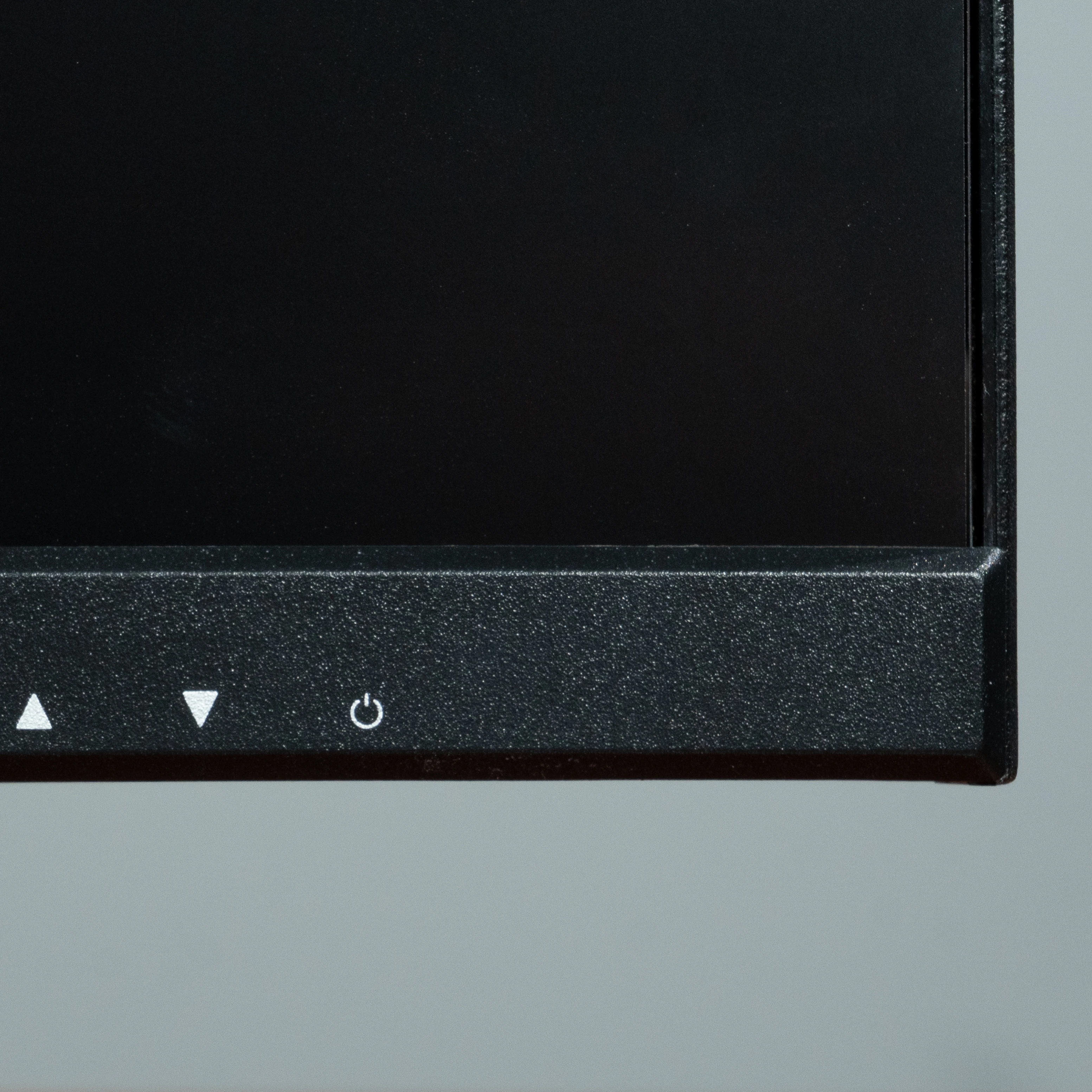
1. Press the power button on the monitor and the power button on the monitor.
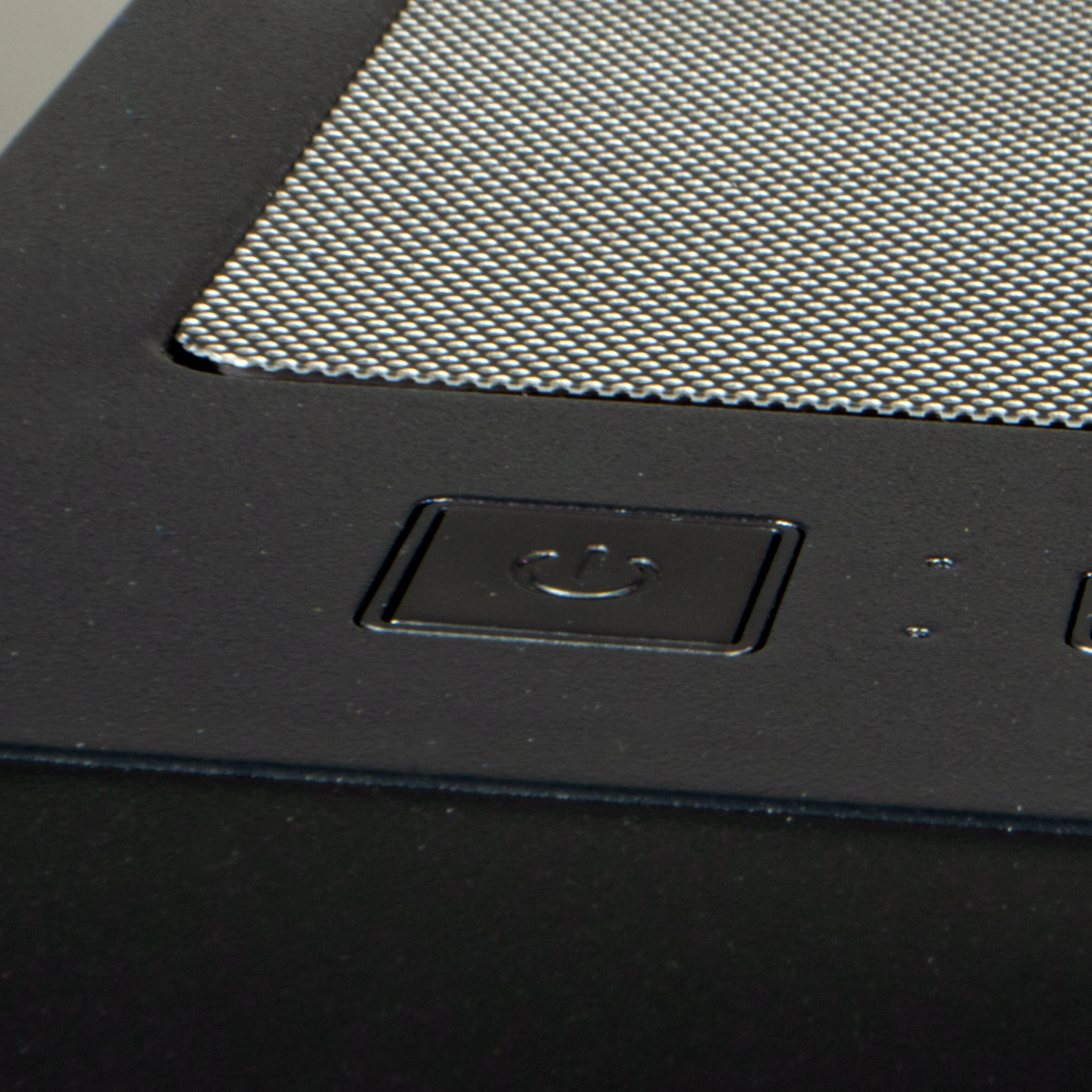
2. Press the power button on the monitor and the power button on the computer.
Your screen should light up within a few seconds. Proceed with setting up Windows by following the on screen prompts.
First startup may take a minute — this is normal.Where are the best places to connect my external devices to my Atlas Gaming PC?
BEST PORTS TO CONNECT:
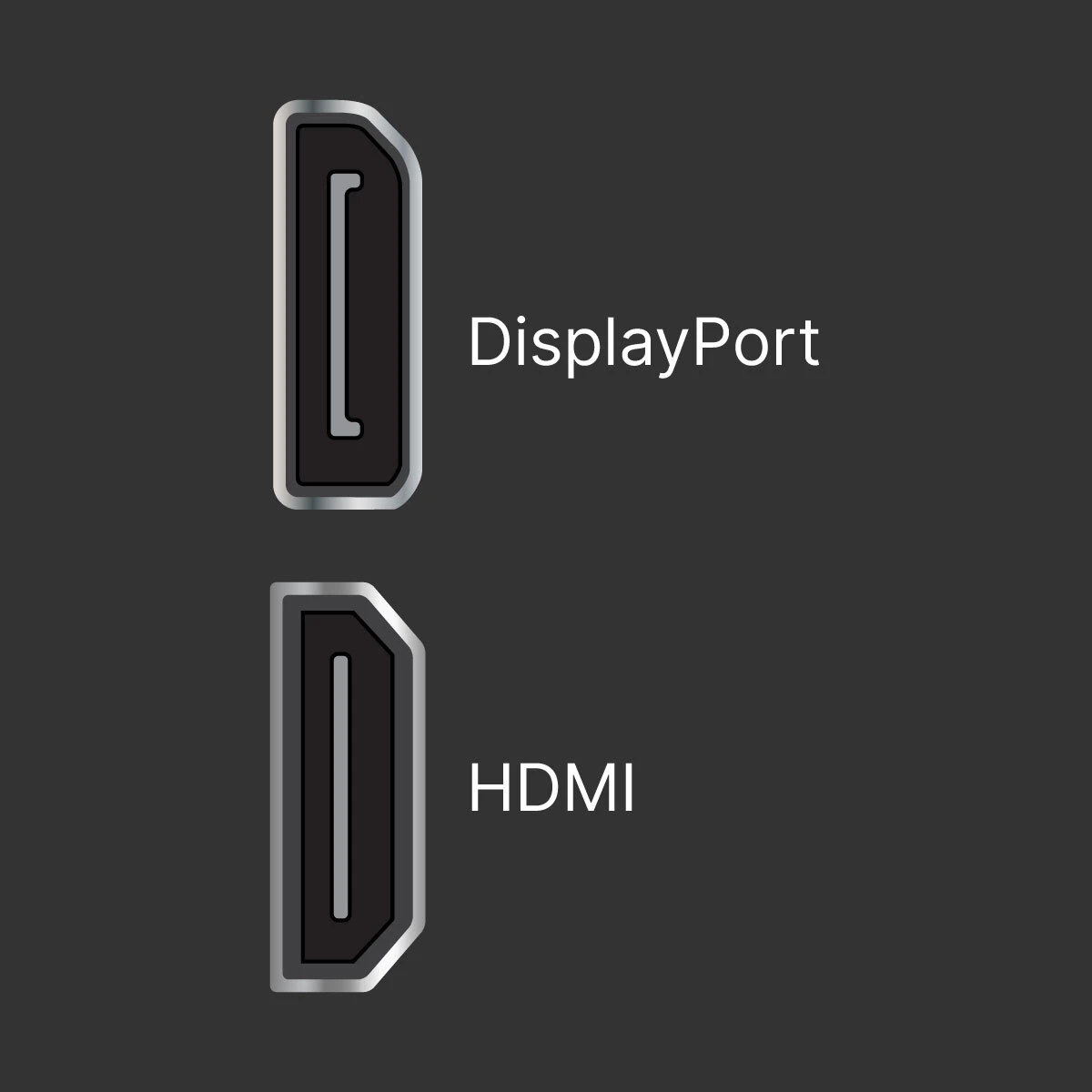
1. Monitors, TVs & Sound Systems
HDMI PORTS & DISPLAYPORTS
Connect monitors, TVs, and sound systems to transmit video and audio from your gaming PC.
2. Headsets, Speakers & Microphones
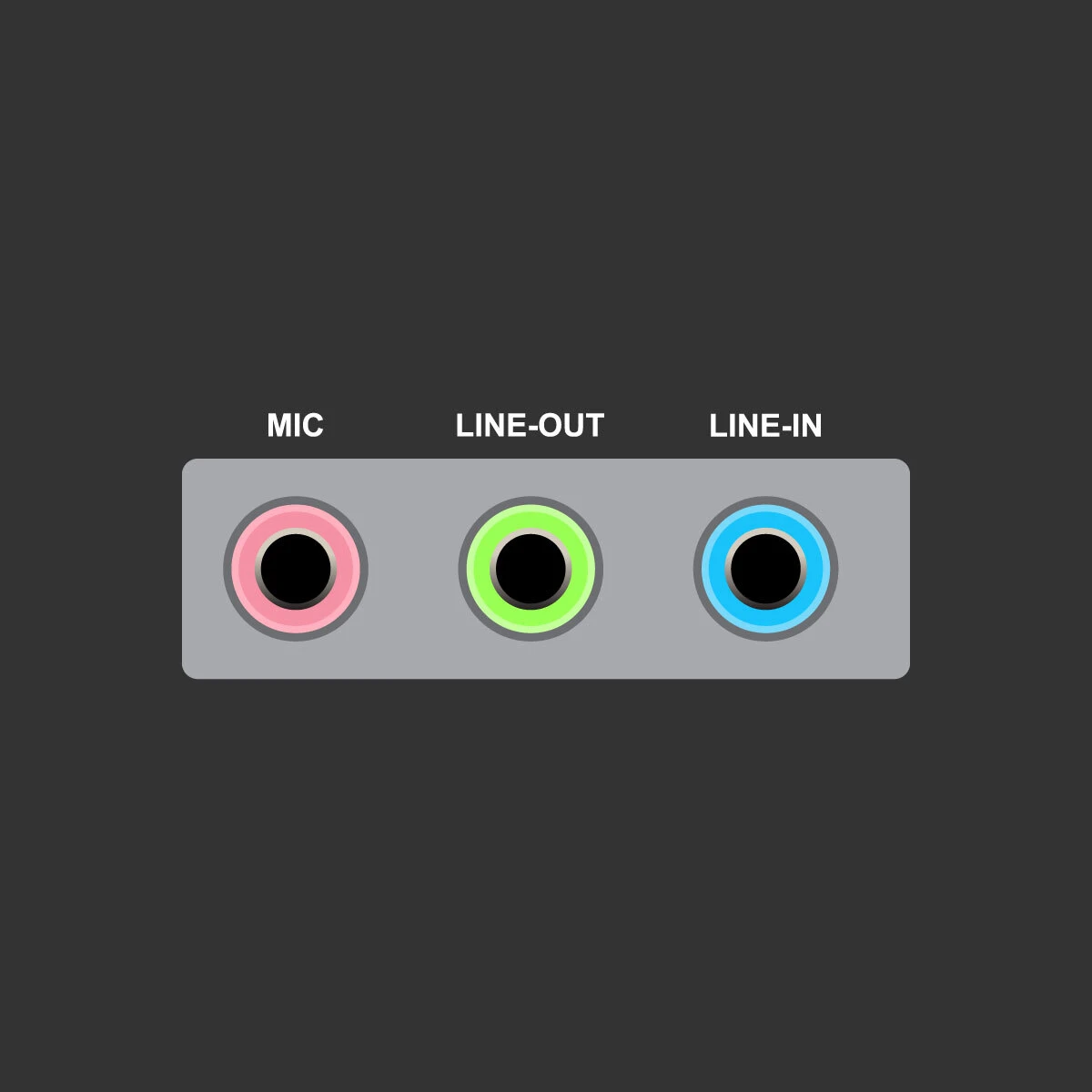
AUDIO/VISUAL INPUT & OUTPUT PORTS
Connect headsets, speakers, microphones, sound systems, and video gear.
3. VR Headsets, Webcams & More
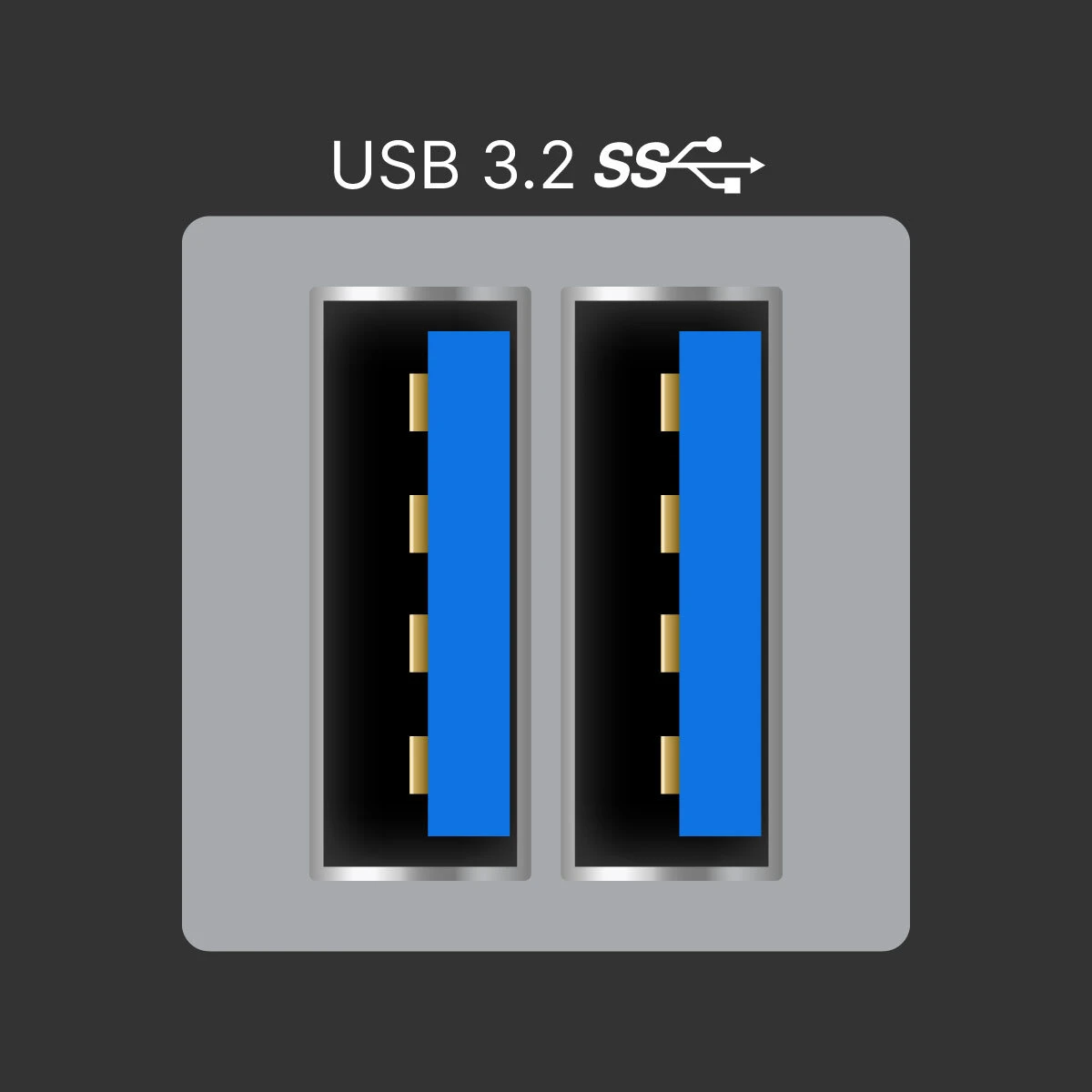
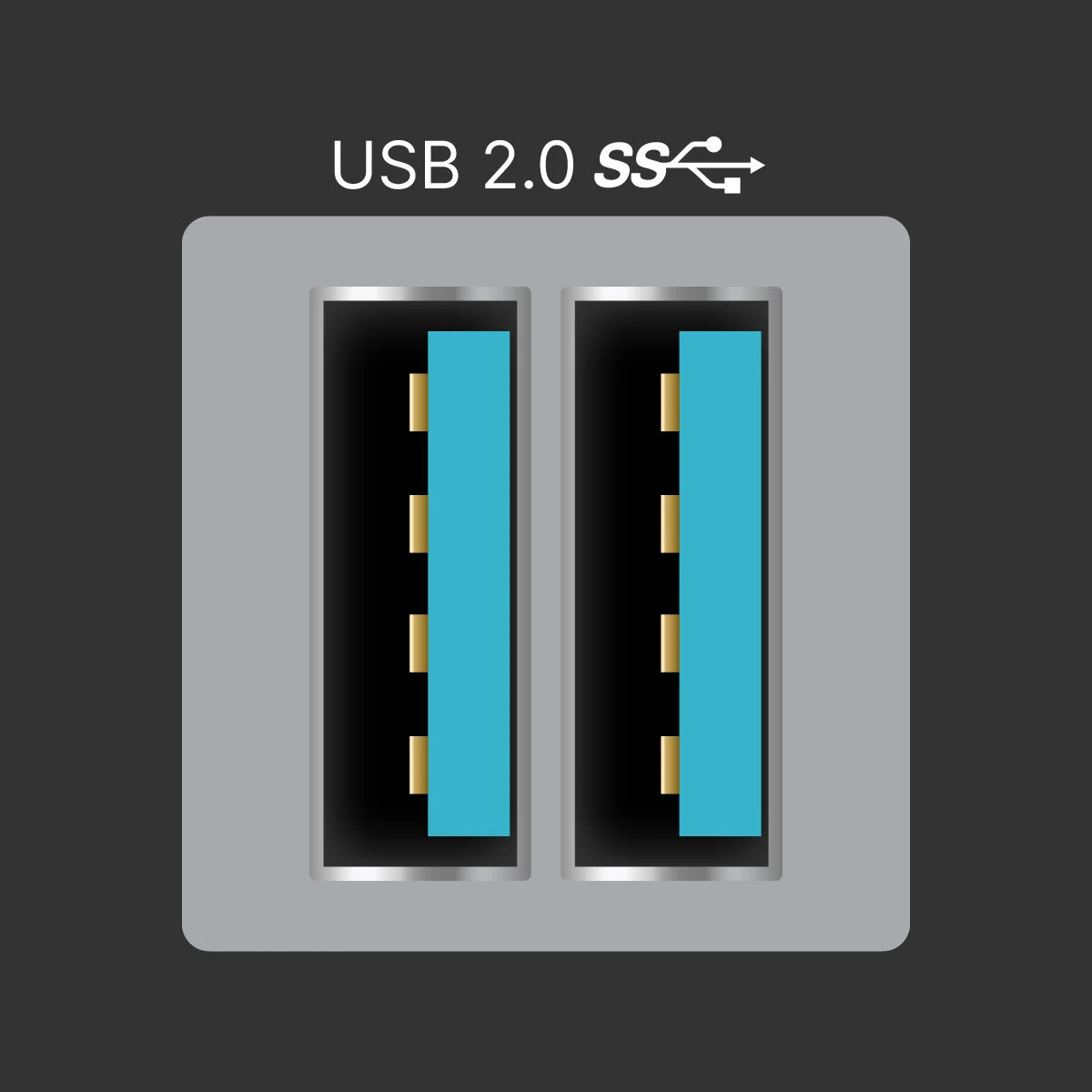
USB 3.2 PORTS
Connect VR headsets, webcams, gaming pads, flight or racing sticks, use external storage for gameplay or other files, and charge devices quickly.
4. Internet
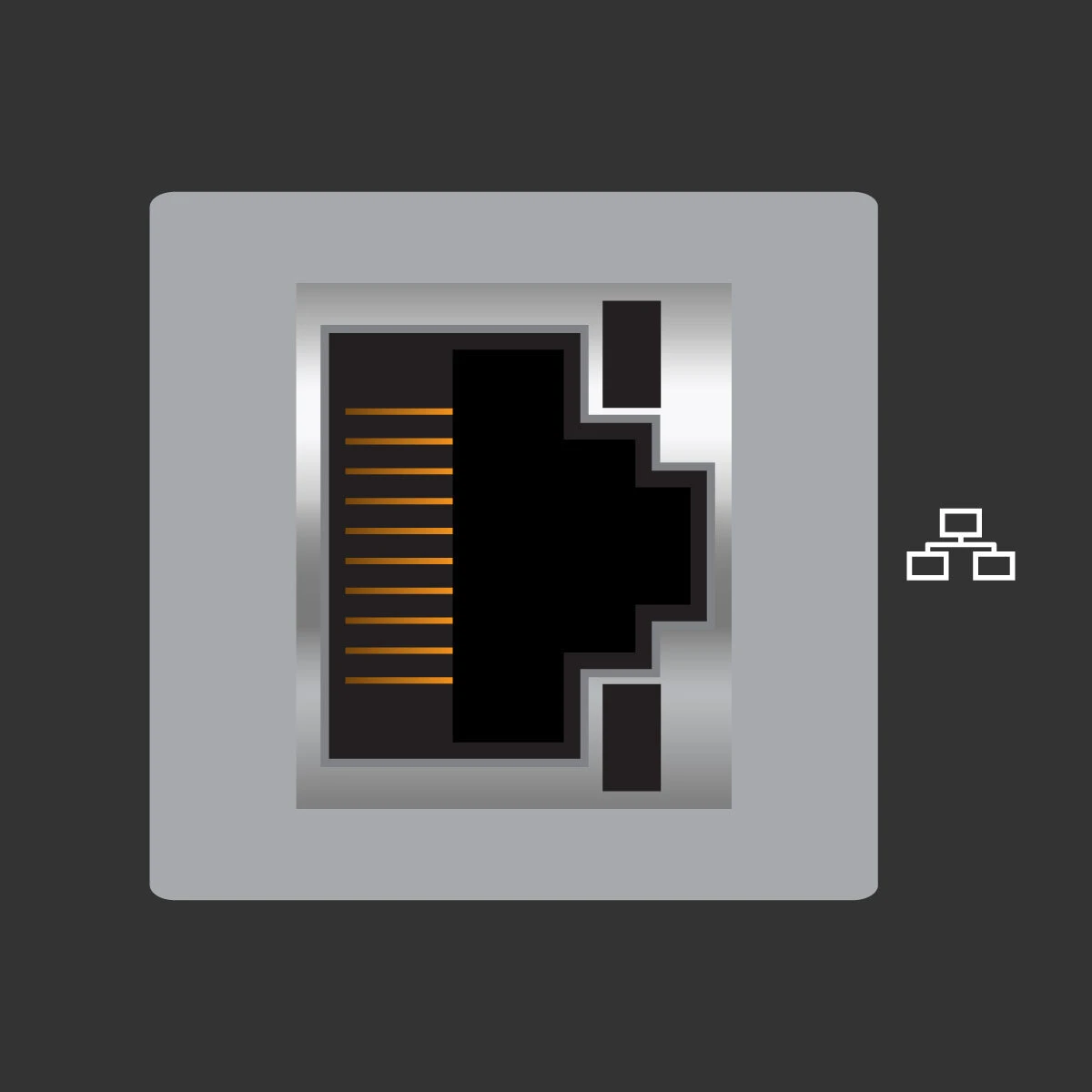
ETHERNET PORT
Connect your gaming PC directly to a router for the best Internet connection to have uninterrupted gameplay.
5. Other Accessories
USB 2.0 PORTS
Connect wired or wireless mice and keyboard, microphones, regular headsets, and charge devices.
HDMI Ports & DisplayPorts
Connect monitors, TVs, and sound systems to transmit video and audio from your Gaming PC.